skybook 1.48.0 Release Notes
Here is the December 2025 release features for skybook version 1.48.0.
If you're interested in learning why not chat to our team...
Jump to the section:
Summary
The skybook Ground Portal can now integrate directly with Leon Software to retrieve crew and schedule data. Enhancements have been made to the icing charts.
We’ve improved NOTAM display and filtering in the Airfields and FIRs modules of the skybook EFB, making it easier to find what matters. Plus, the Fuel Order form now includes additional fields for smoother, more accurate submissions.
Ground Portal updates
Leon Integration
The skybook Ground Portal now integrates directly with Leon Software to retrieve crew and schedule data that is then displayed in the Dispatch module and used in the OFP.
Note: You must have your own Leon access credentials in order to connect via the Ground Portal. For information regarding the set-up of Leon, please contact your skybook representative for further information.
There is a new Integrations tab in the Settings module that allows you to connect with Leon.
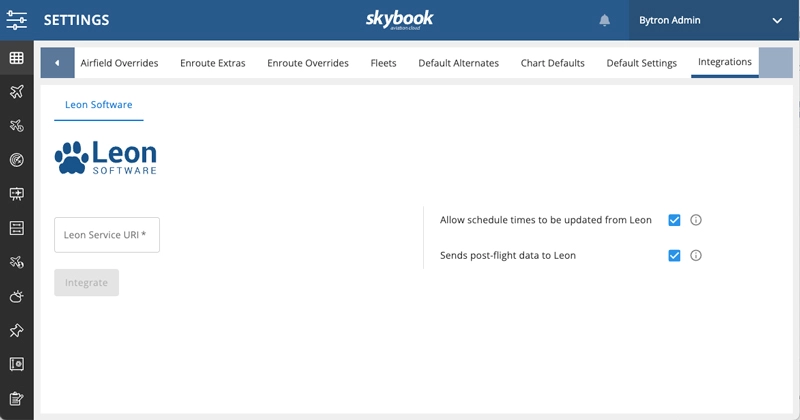
To integrate with Leon, insert a valid URI in the Leon Service URI text box and click Integrate.
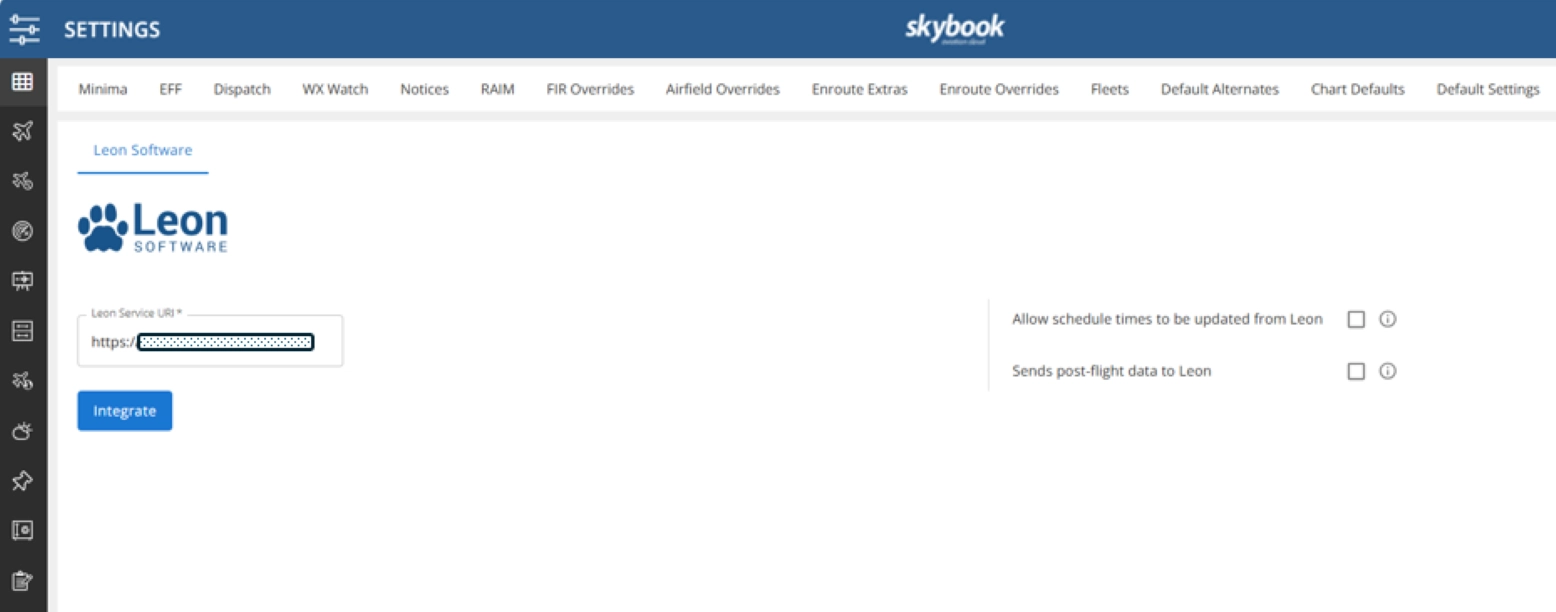
You will then be taken to a login page for authentication:
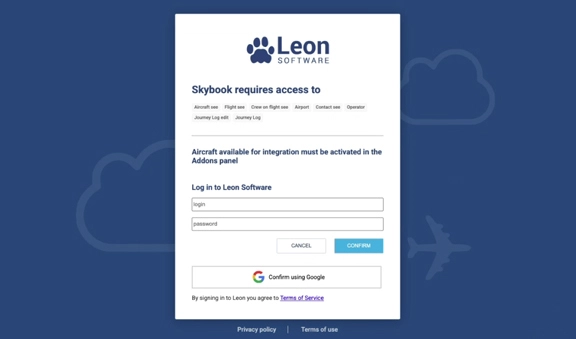
Insert your Leon login and password, and click Confirm. Once successfully integrated, the integration will be listed on the Integrations tab.
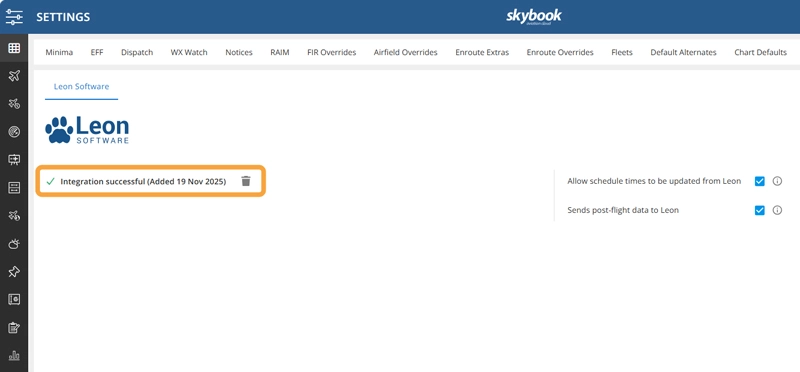
Any scheduled Leon flights will display in the Dispatch module.
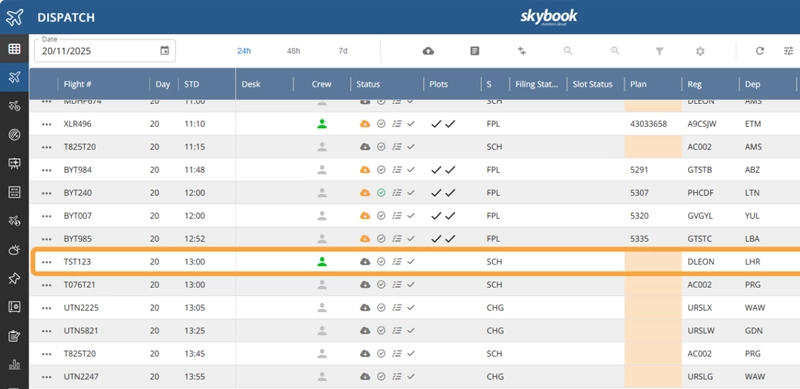
Crew information for the flight will also be imported.

If you check the Allow schedule times to be updated from Leon box, when the schedule times of a flight are updated in Leon, the change will be reflected in the Dispatch module.

If you check the Sends post-flight data to Leon box, when a voyage is closed, the post-flight data will be sent back to Leon.
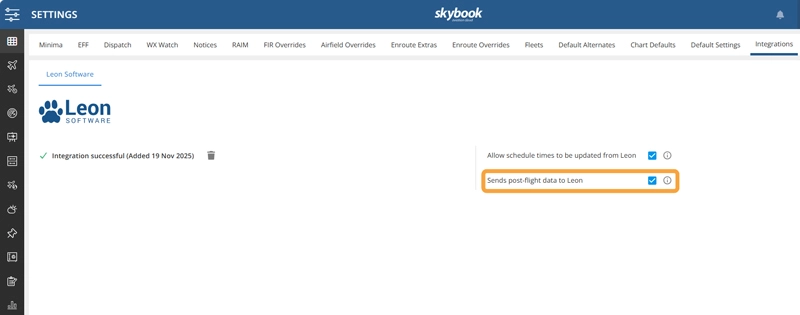
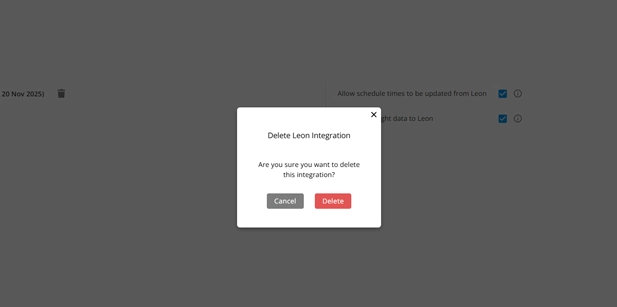
You can remove the integration at any time by clicking on the trashcan icon and clicking Delete on the confirmation popup.
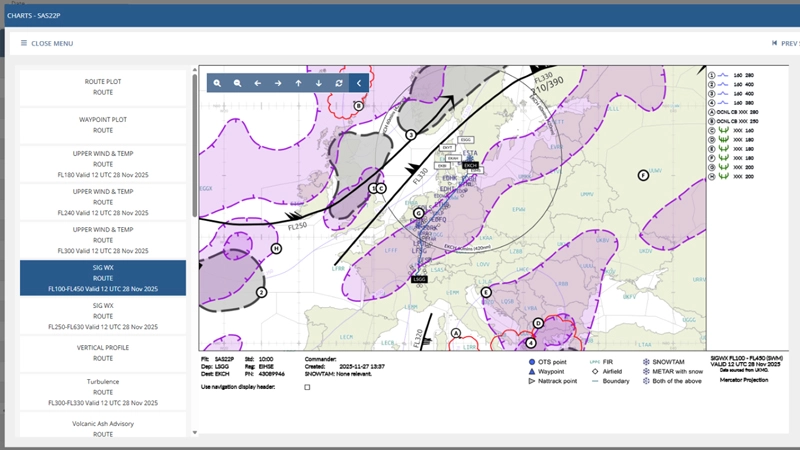
Purple “T” line and purple shading indicate icing areas
Icing information has changed from being displayed as a purple dash outline to a purple “T” line, and is shaded with lighter or darker shades indicating the severity of the icing.
skybook EFB updates
NOTAM management
Changes have been made to the display and filtering of NOTAMs in the Airfields and FIRs modules in the skybook EFB application.
Note: This functionality is not available by default. Please contact your skybook account representative for further information.
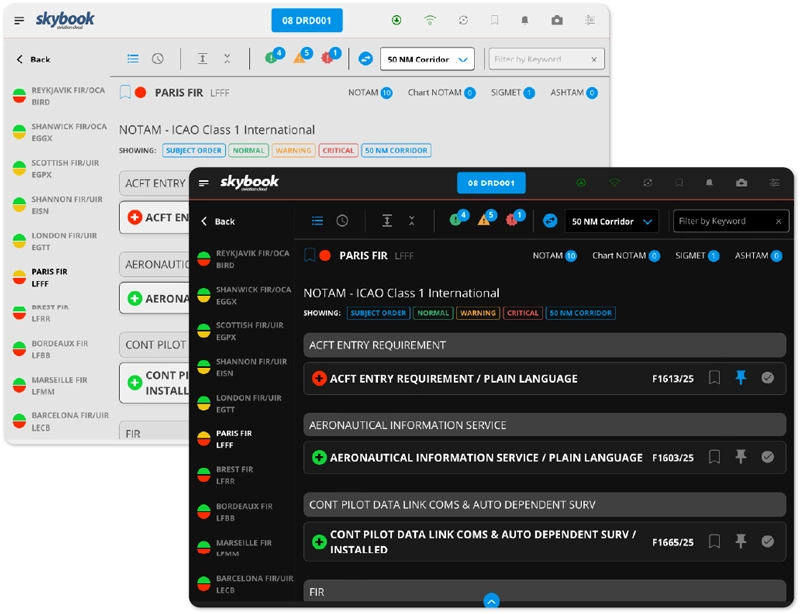
We’ve redesigned the NOTAM toolbar and filter section in the Airfields and FIRs modules, introducing new functionality to simplify NOTAM management. This includes:
- the ability to expand/collapse NOTAMs individually or all at once
- the option to mark NOTAMs as read
- the ability to pin NOTAMs to the top of the list
- a Nautical-Mile Corridor filter that is applied in combination with the Normal, Warning and Critical filters
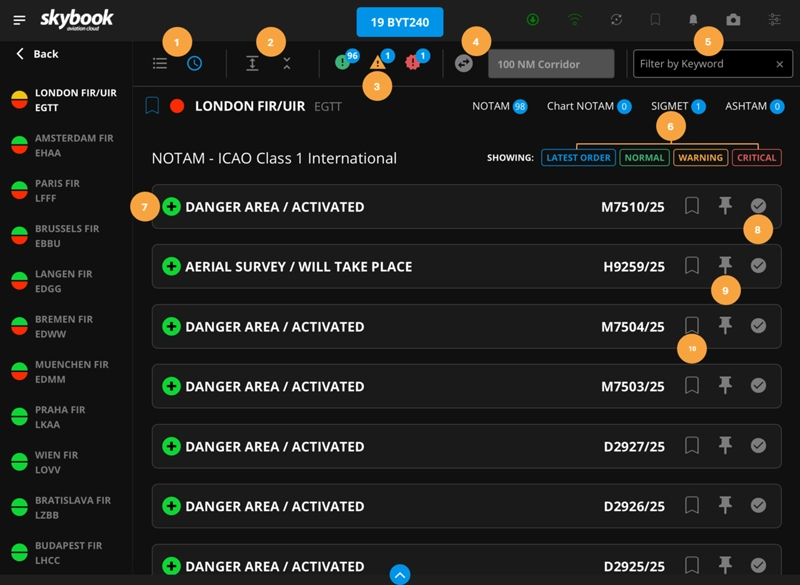
Here’s how it appears in Day and Night mode, followed by a key and description of each element:
| Key | Name | Description |
|---|---|---|
| 1 | Order | Tap on the List icon on the left to order the NOTAMs by subject. Tap on the Clock icon on the right to order the NOTAMs by latest (most recent). |
| 2 | Expand / collapse all | Tap the Expand icon on the left to expand all NOTAMs at once and see the full NOTAMs. Tap the Collapse icon on the right to minimise all NOTAMs at once and see only their titles. |
| 3 | Type selection | Tap on one or more of the type icons - Normal, Warning, Critical - to display only the type(s) of NOTAM that you want to see. The NOTAMs for the type(s) that you have tapped will disappear, leaving only the ones that you want to see. |
| 4 | NM Corridor | Tap the NM Corridor toggle switch on the left to activate the NM Corridor dropdown menu on the right. You can then select the size of the limit either side of your route that you wish to apply. Only the NOTAMs within your selected Nautical-Mile Corridor will be displayed. |
| 5 | Filter NOTAM by Keyword | Type the word or phrase that you want to filter by and tap return on your keyboard to display only the NOTAMs containing those keywords. |
| 6 | Current filters | The different colour boxes show which filter results are being displayed. These will change as you select different filter options. |
| 7 | Expand / collapse NOTAM | Tap the Plus button to expand a NOTAM. Tap the Minus button to collapse a NOTAM. |
| 8 | Mark as read | Tap the tick box to mark a NOTAM as read. The tick box will turn blue, the NOTAM will be minimised, and the NOTAM text will be greyed out. The NOTAM will remain marked as read on your device for 24 hours. |
| 9 | Pin | Tap the Pin icon to pin a NOTAM to the top of the list. The Pin will turn blue and the NOTAM will be moved to the top of the list. If multiple NOTAMs are pinned, they will be listed in subject or time order, according to which is currently selected at the top of the screen. |
| 10 | Bookmark | Tap the Bookmark button to bookmark a NOTAM for future reference during the sector. |
Fuel Order additions
New fields have been added for use in the Fuel Order within the Briefing.
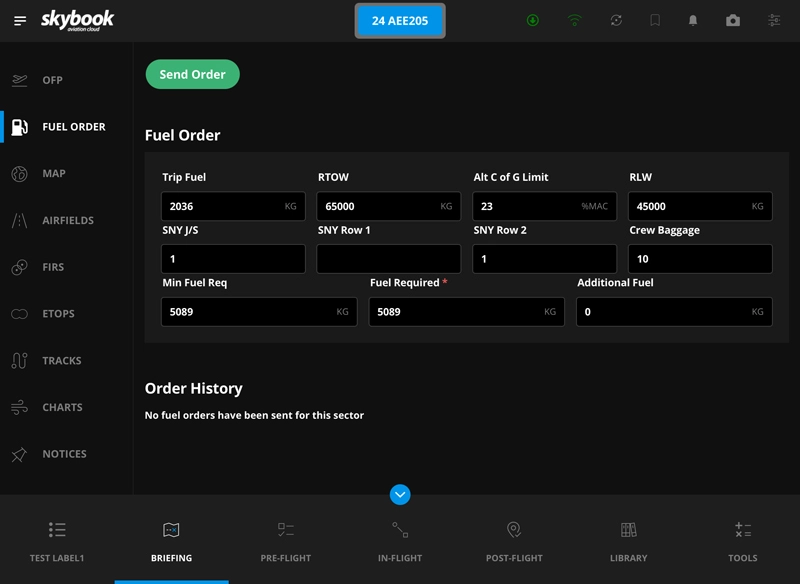
These are:
- Trip Fuel (a read only field)
- RTOW - Regulated Take-Off Weight
- Alt C of G Limit - Alternate Centre of Gravity Limit
- RLW - Restricted Landing Weight
- SNY J/S - Supernumerary Jumpseat - number of people sat in the Jumpseats
- SNY Row 1 - Supernumerary position - whether the additional person is seated in row 1 of the Jumpseats
- SNY Row 2 - Supernumerary position - whether the additional person is seated in row 2 of the Jumpseats
- Crew Baggage - how many pieces of crew baggage are on board
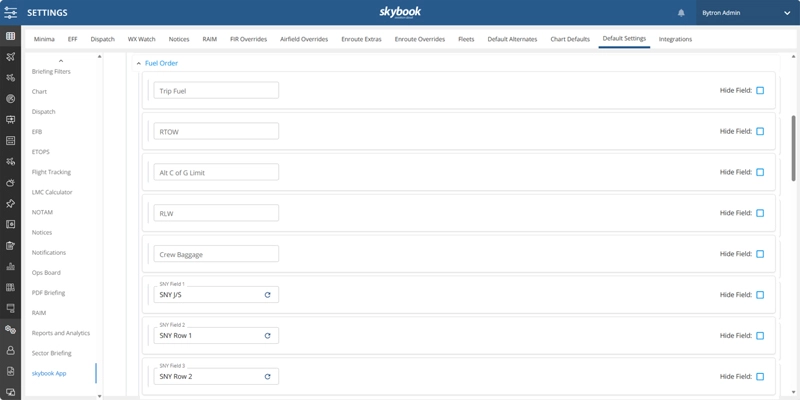
To access the new Fuel Order fields, simply enable them in the Fuel Order settings for the Briefing module. You’ll find this in the Ground Portal under Settings → Default Settings → skybook App → Fuel Order.
Integration updates
AIMS registration filtering
Information received from the AIMS service can now be filtered based on particular aircraft registrations or on regular expressions limiting the registrations.
ETOPS / EDTO from PPS
It is now possible for skybook to ingest ETOPS / EDTO data from PPS and incorporate it into the necessary charts and workflows.
OPMET, VAAC and TC-Advisories
A Met Office API, SADIS (Secure Aviation Data Information Service), is now the source for OPMET (Operational Meteorological Information) including the TAC (Traditional Alphanumeric Codes) features that provide METAR, SIGMET, SPECI, TAF, VAAC and TC-Advisory data. The data received conforms to the TAC or IWXMM (ICAO Meteorological Information Exchange Model) formats.
AIMS Crew changes
Crew information received from the AIMS service now identifies the PIC, and any crew members that are deadheading.
ETOPS / EDTO from Flightkeys
ETOPS / EDTO flights can now be identified in data received from Flightkeys and are processed accordingly.
Take a look at what’s included in the previous skybook release notes (1.47.0)