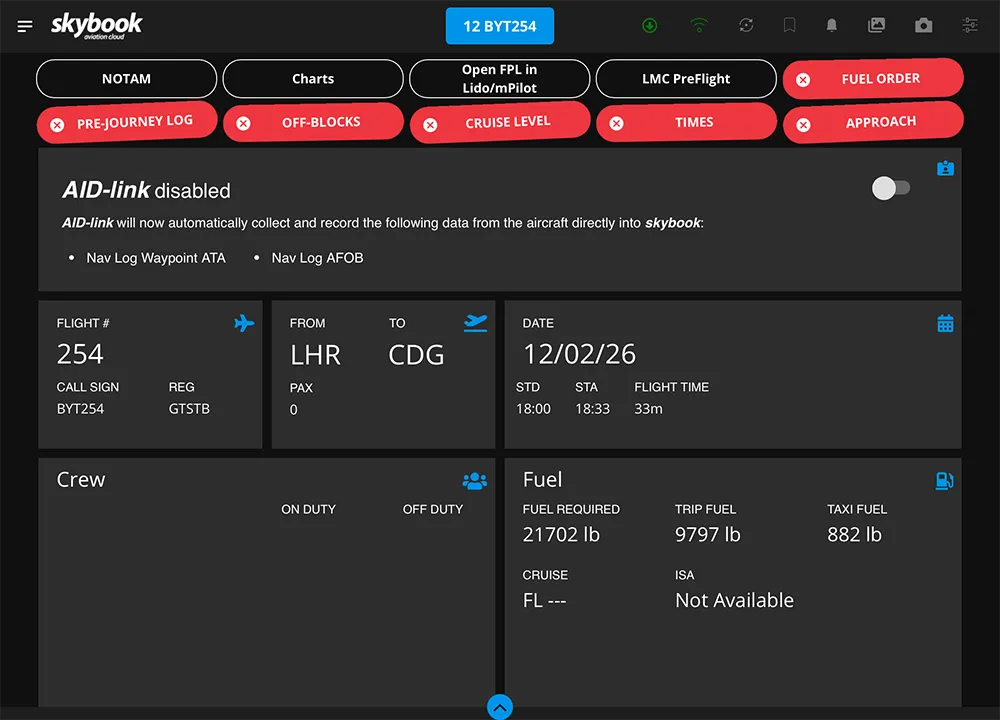
Alternatively, go to the section containing the module and swipe the module left, then tap the star icon that appears to remove the quicklink and favourite.
Note: The default quicklinks may differ, depending on your organisation's preferences.

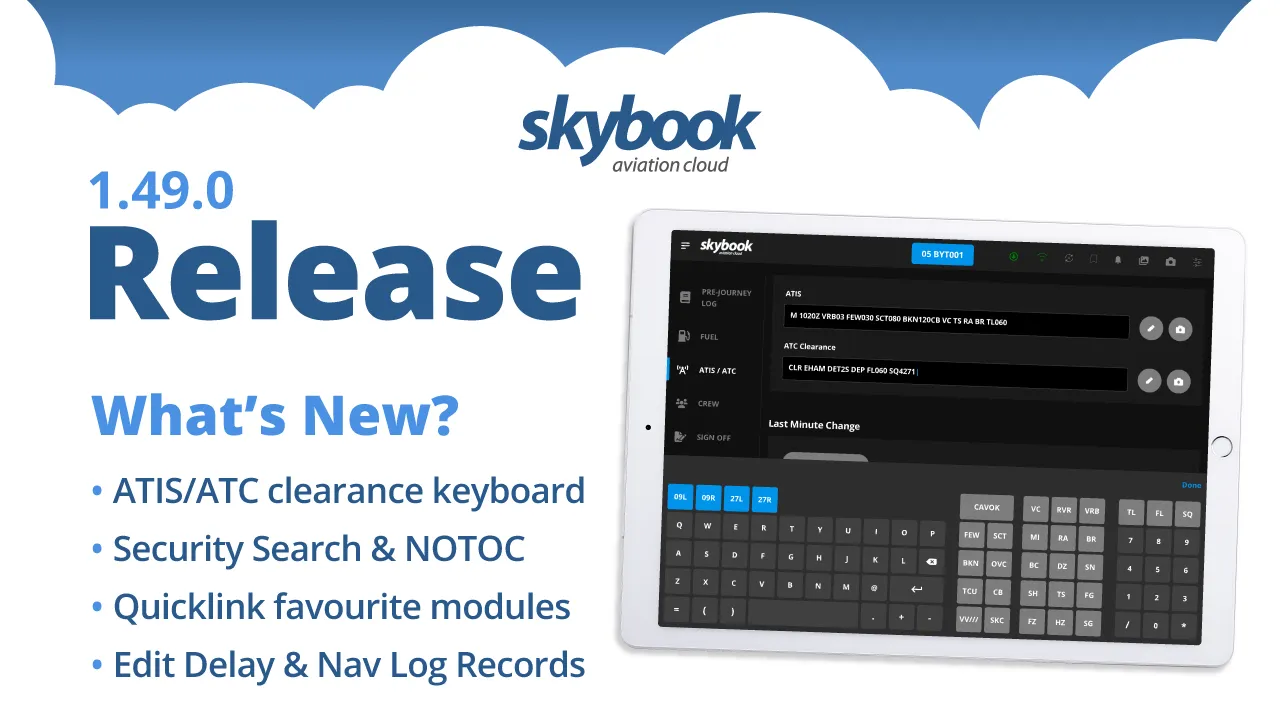
Here is the March 2026 release features for skybook version 1.49.0.
If you're interested in learning why not chat to our team...
This skybook Ground Portal update includes additional editable fields and improved filtering in the Record Vault, alignment of Record Vault fields with EFB configurations, and a new operator setting to prevent updates to closed sectors.
Our latest EFB enhancements include a new ATIS/ATC clearance keyboard, new optional Pre-Flight fields, quicklink favourite modules on the Summary screen, Delay Code search functionality, improved EJL emails, a concise FMS Route Check, and automatic voyage data transmission for sectors signed off offline.
Note: This functionality is only available to users with Admin Edit rights.
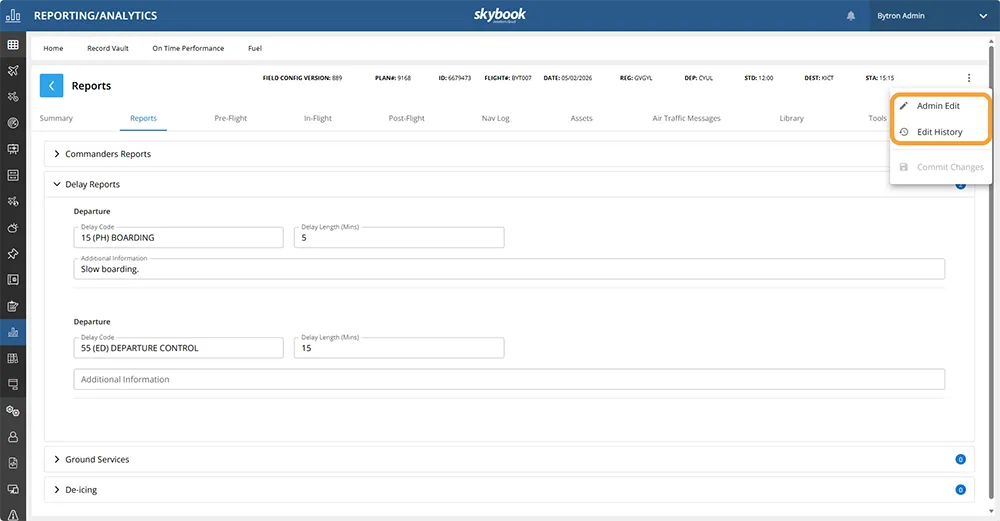
Users can now edit delay reports and Nav Log entries in the In-Flight tab of the Sector Data screen within the Record Vault. To enable editing, click on the vertical Ellipsis at the top right of the screen and click Admin Edit.
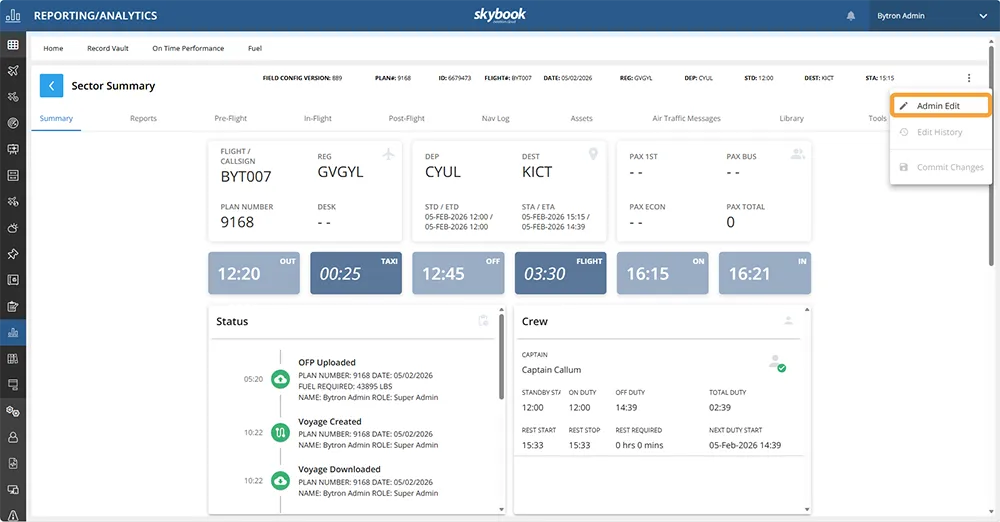
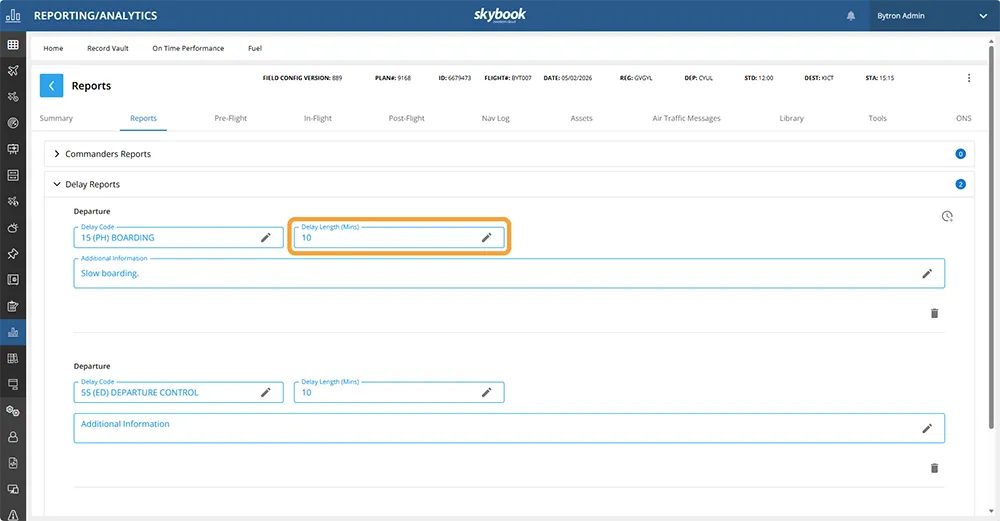
To edit a field in the Delay Report, click on the Reports tab, then click the arrow to the left of Delay Reports, and click the edit icon in the field:
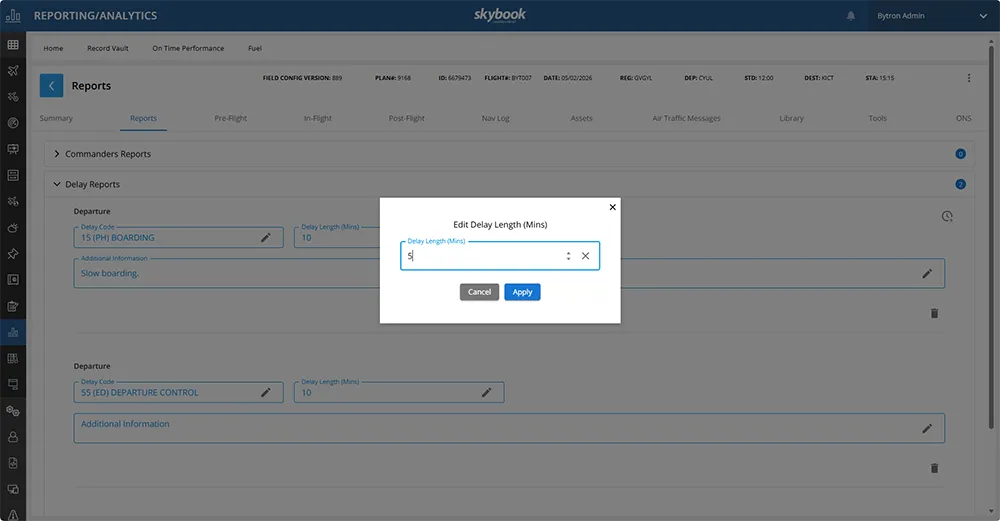
The editing popup for the field will appear and you can enter the relevant text:
To edit a field in the Nav Log, click on the Nav Log tab, then click the edit icon on the row you wish to edit:
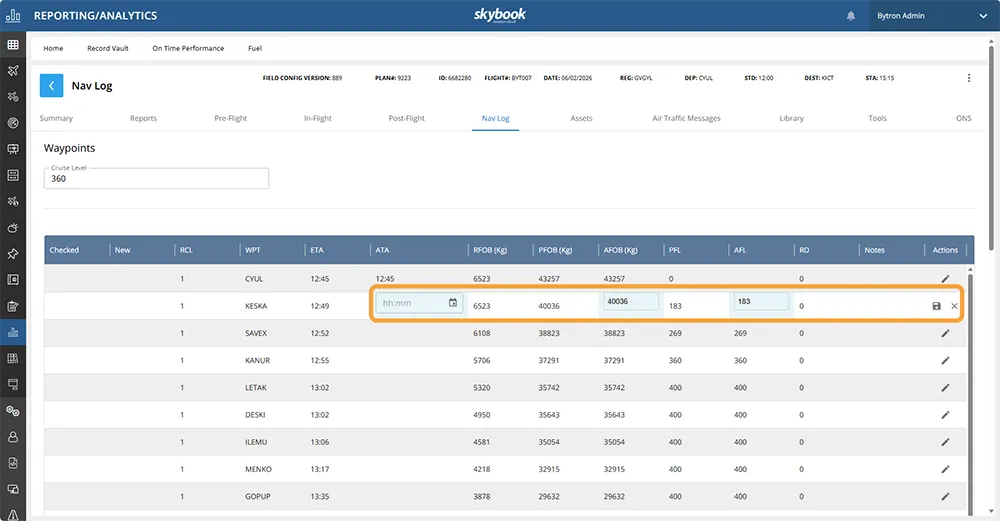
Choose the correct date/time and click OK, or edit the text boxes, then click the save icon.
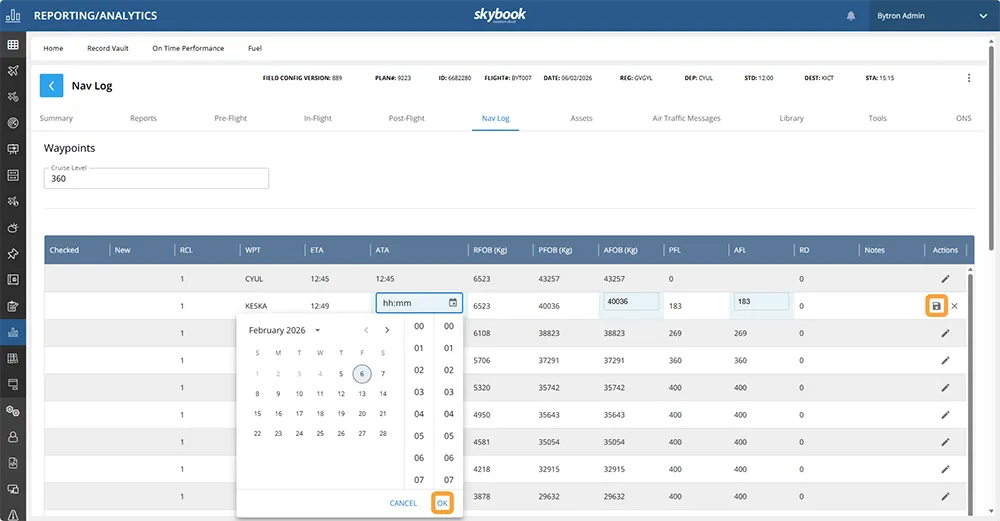
When you have made all the necessary changes in all of the tabs, click on the vertical Ellipsis at the top right of the screen and click Commit Changes.
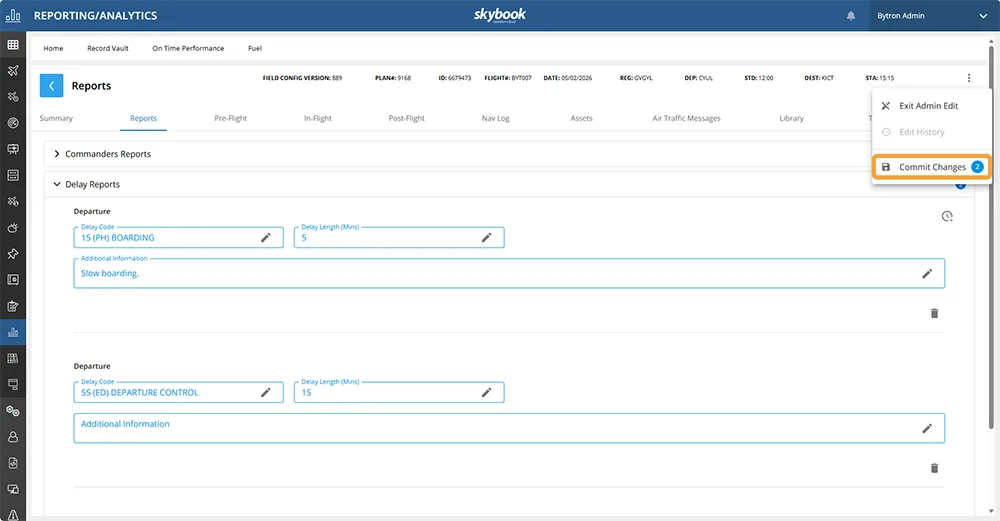
The Commit popup will appear and you must enter the reason that any changes have been made:
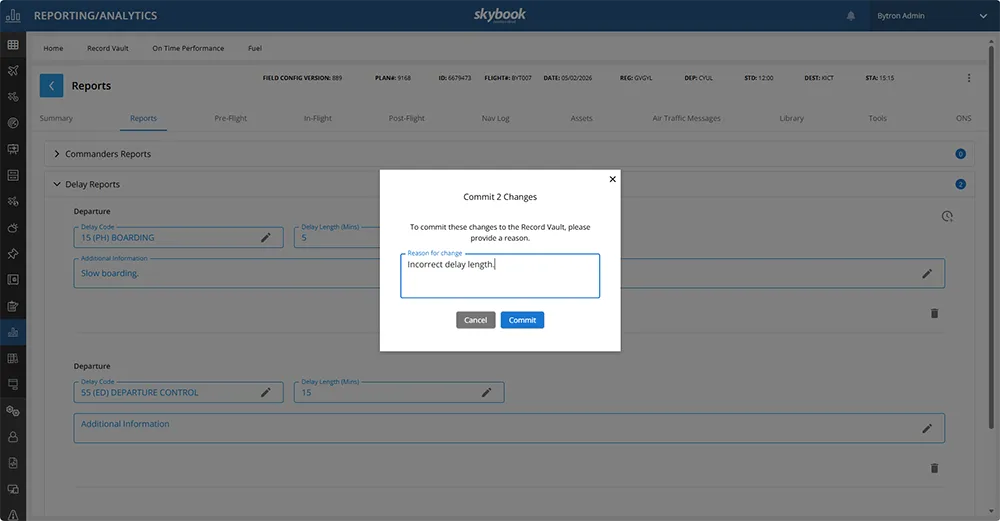
Once you have entered the reason for the changes, click Commit. The changes will be displayed in the relevant fields.
To view the history of changes that have been made, or to make additional changes, click on the vertical Ellipsis at the top right of the screen and click Edit History or Admin Edit.
The Record Vault now reflects customer EFB configurations, displaying only the selected fields and labels for a cleaner, more relevant view.
The configuration version used for each sector is shown in the header, while previous versions are retained to maintain accurate historical records.
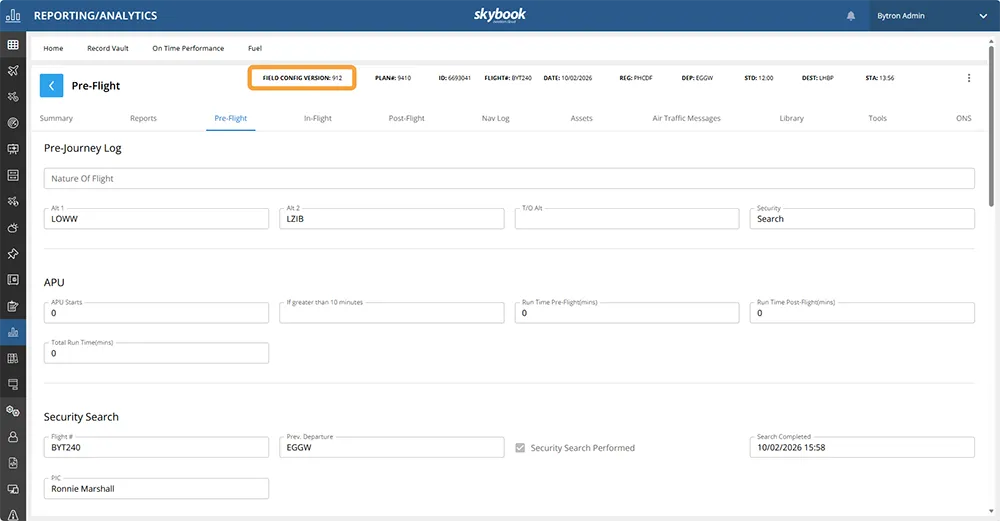
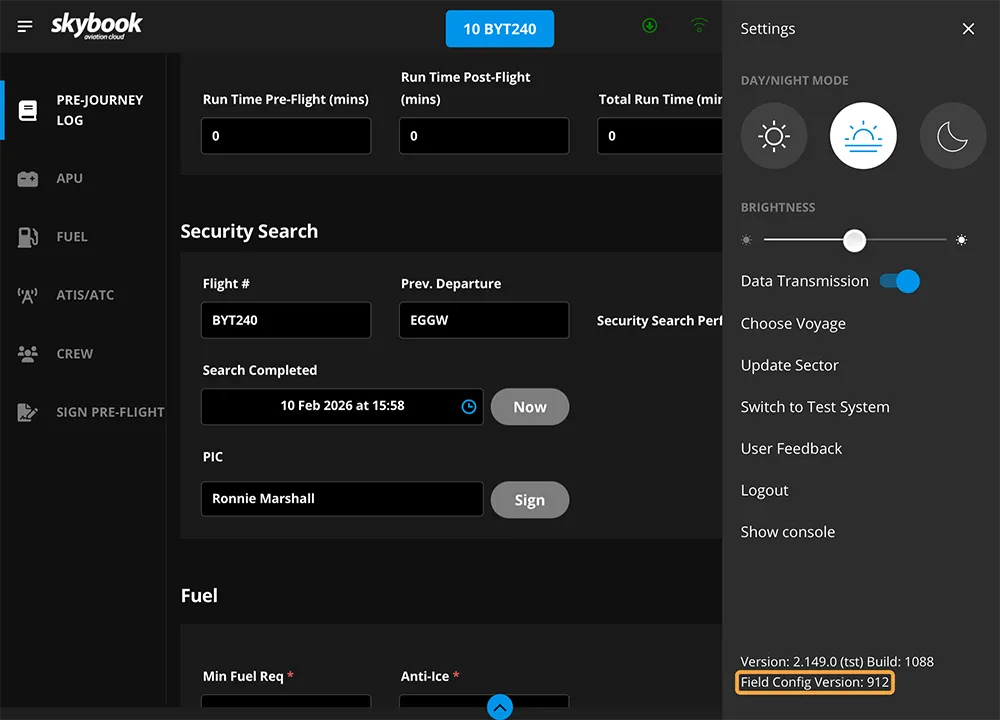
The Field Config Version in the header of the Record Vault matches the Field Config Version in the skybook EFB:
A new operator setting has been added, which stops incoming flight plans from updating closed sectors. This means that closed sectors remain unchanged and no unintended updates occur.
Note: This functionality is not available by default. Please contact your skybook account representative for further information.
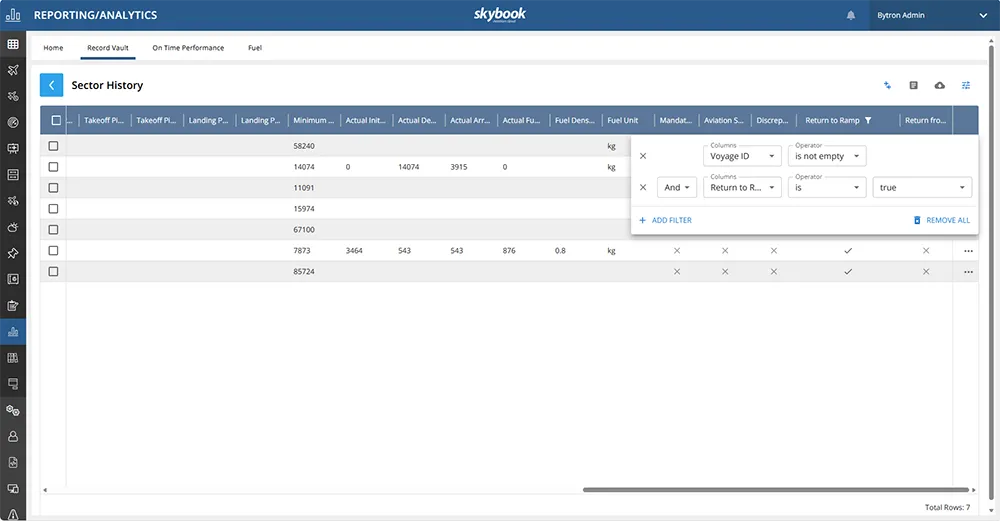
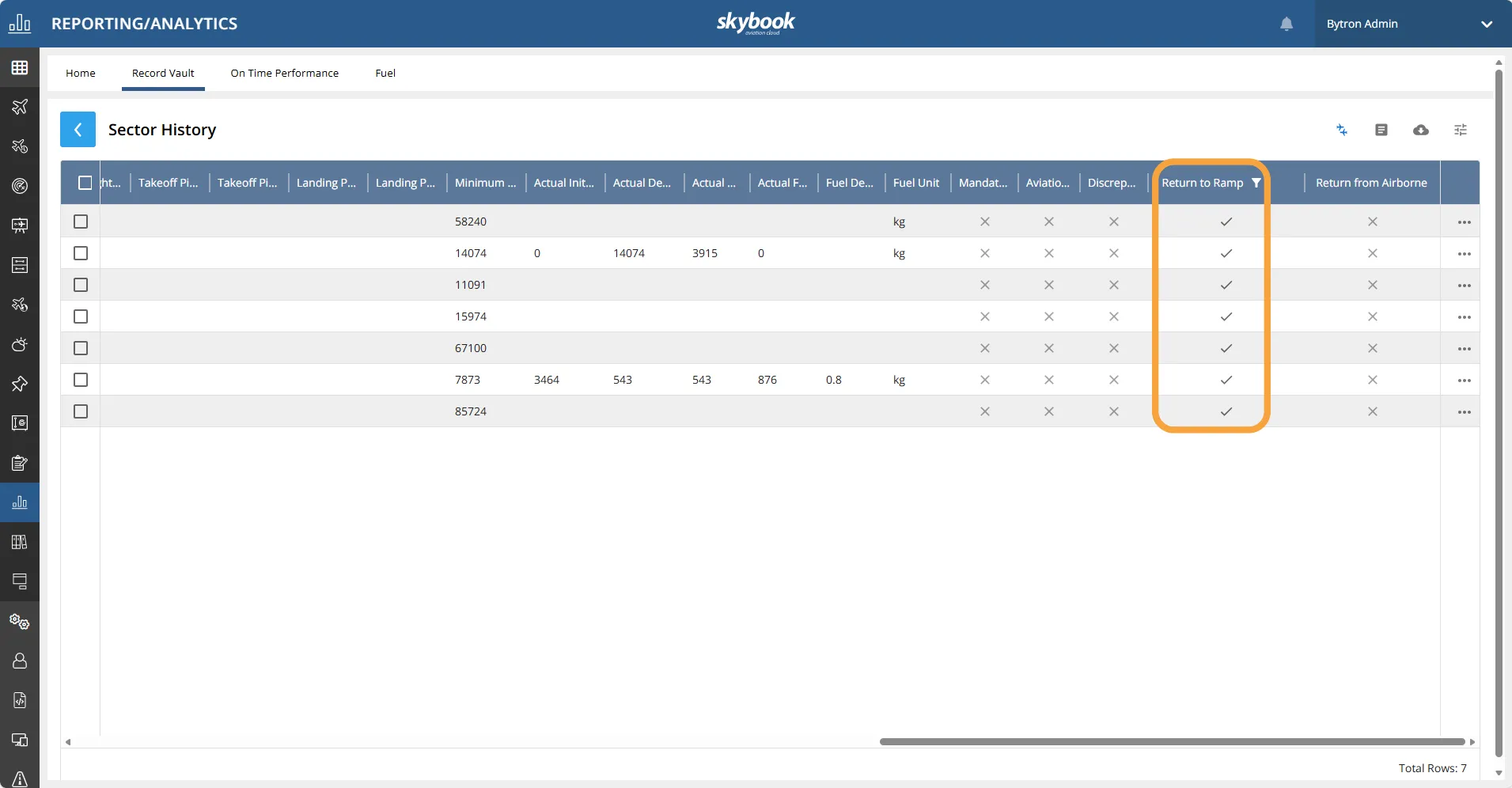
The Return to Ramp and Return from Airborne columns in the Record Vault can now be filtered, allowing customers to easily see which flights have been returned.
Note: Depending on your skybook configuration, these columns may be named Return to Field and Return to Ground respectively.
To filter these columns in the Sector History screen, click the ellipsis on the Return to Ramp or Return from Airborne column header, select Filter, then choose the relevant one from the Columns dropdown list.
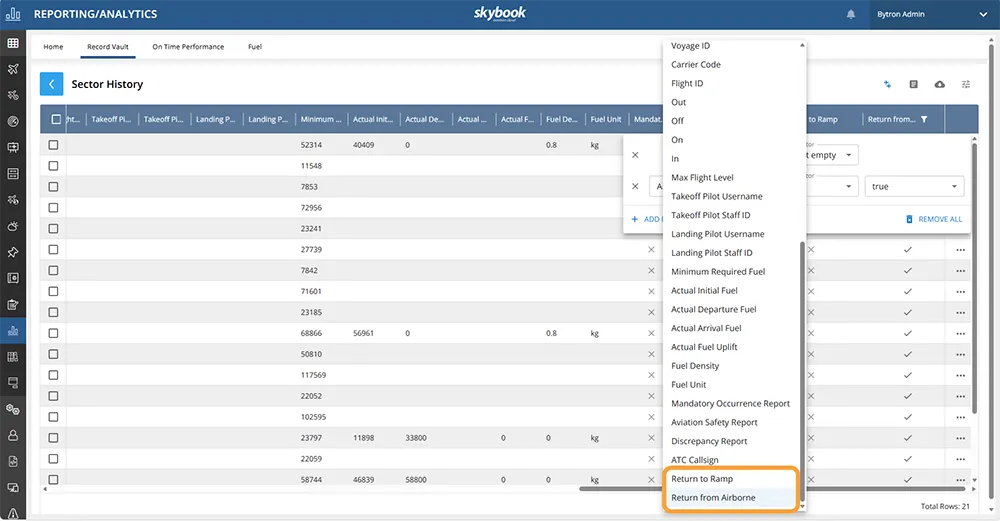
Select true from the dropdown list on the right-hand side.
The column will be filtered to display only those rows where the sector was returned to ramp or returned from airborne, and the filter symbol is displayed on the relevant column:
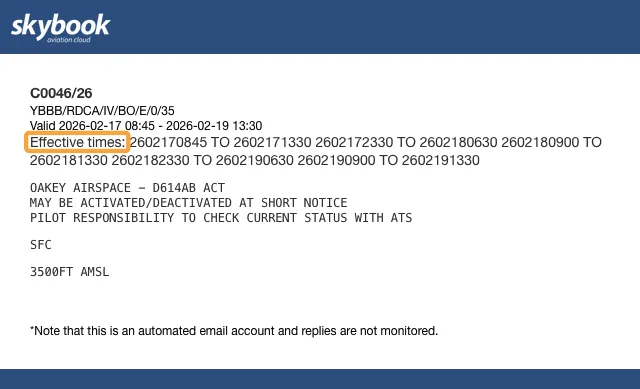
The text "Operating hours" has been changed to "Effective times" in all NOTAM emails sent from the skybook Ground Portal. This is to clearly communicate the time period that the NOTAM is in effect, without implying that the runway is open.
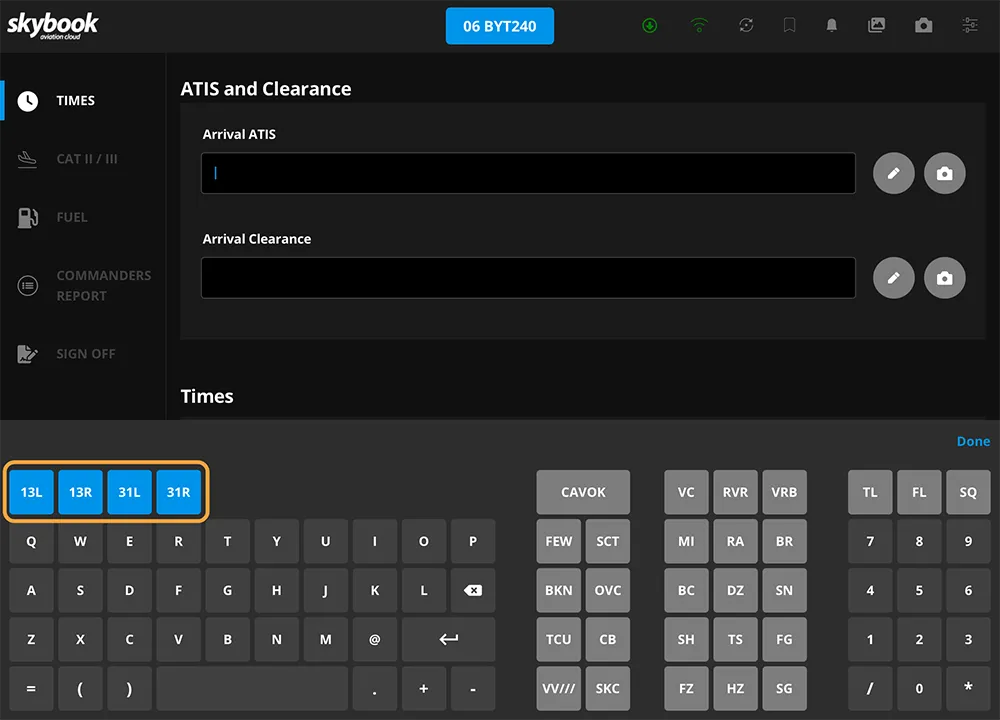
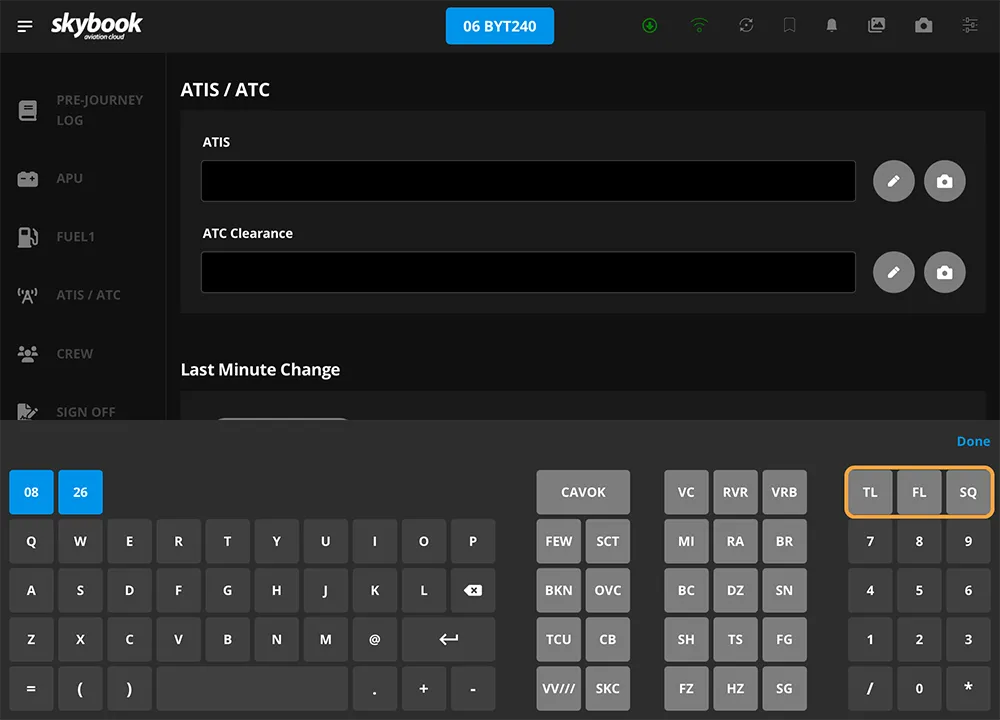
A bespoke keyboard has been created for the ATIS and ATC Clearance fields in the Pre-Flight, In-Flight and Post-Flight modules, streamlining input and improving speed for users.
The keyboard is divided into six sections:
1. Runway designations for the departure and arrival airfields:
Departure airfield runways (displayed in the Pre- and In-Flight modules).
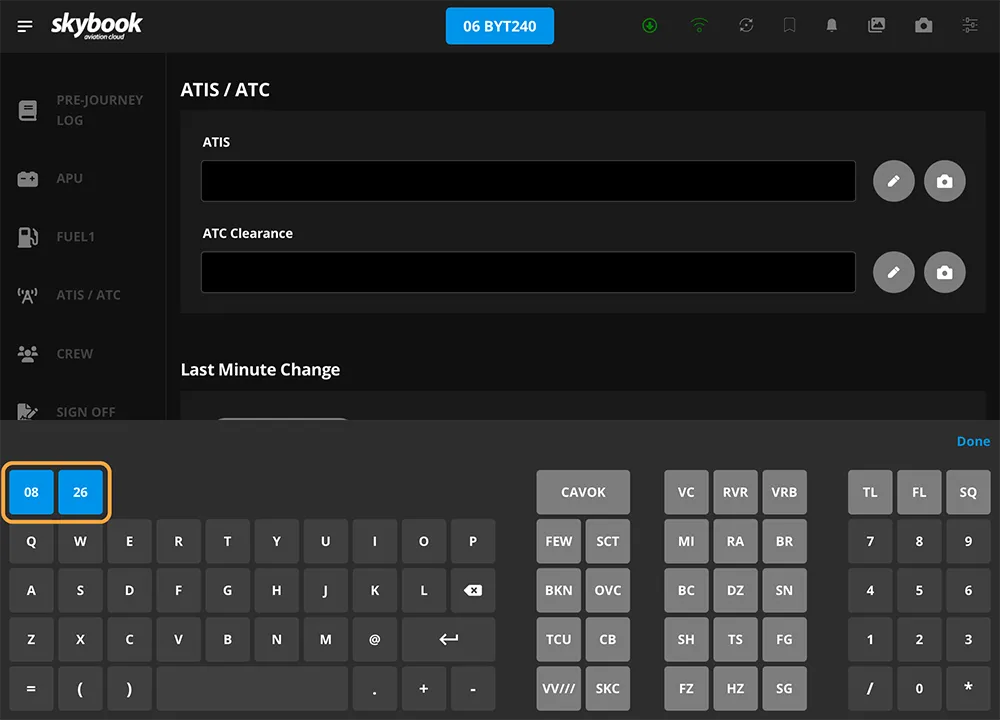
Arrival airfield runways (displayed in the Post-Flight module).
2. Simplified QWERTY keyboard.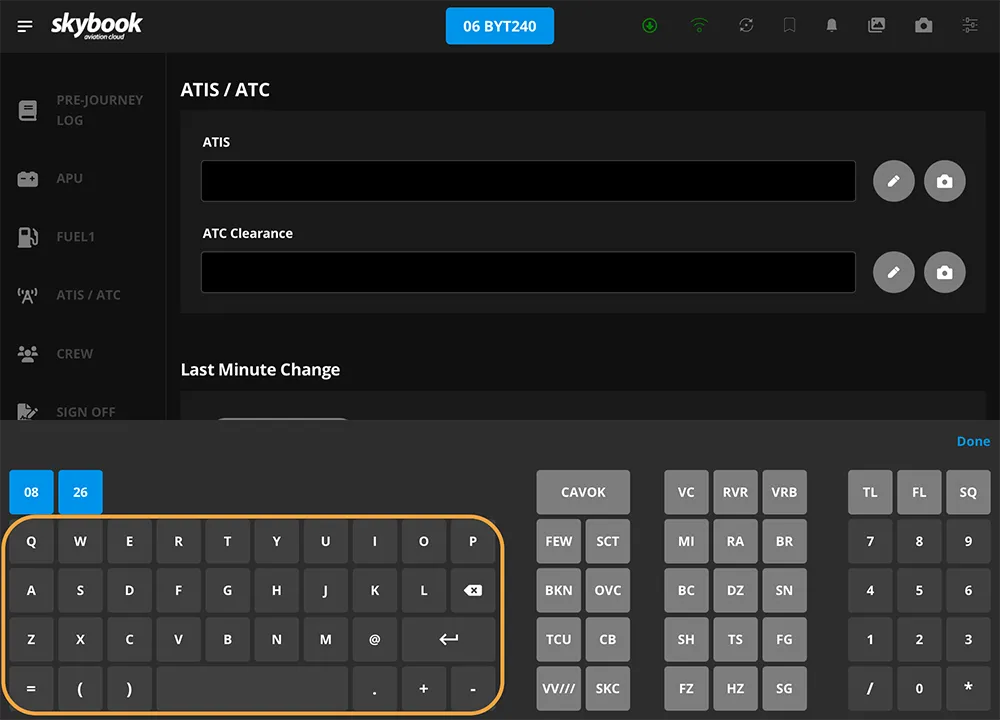
3. Sky coverage codes.
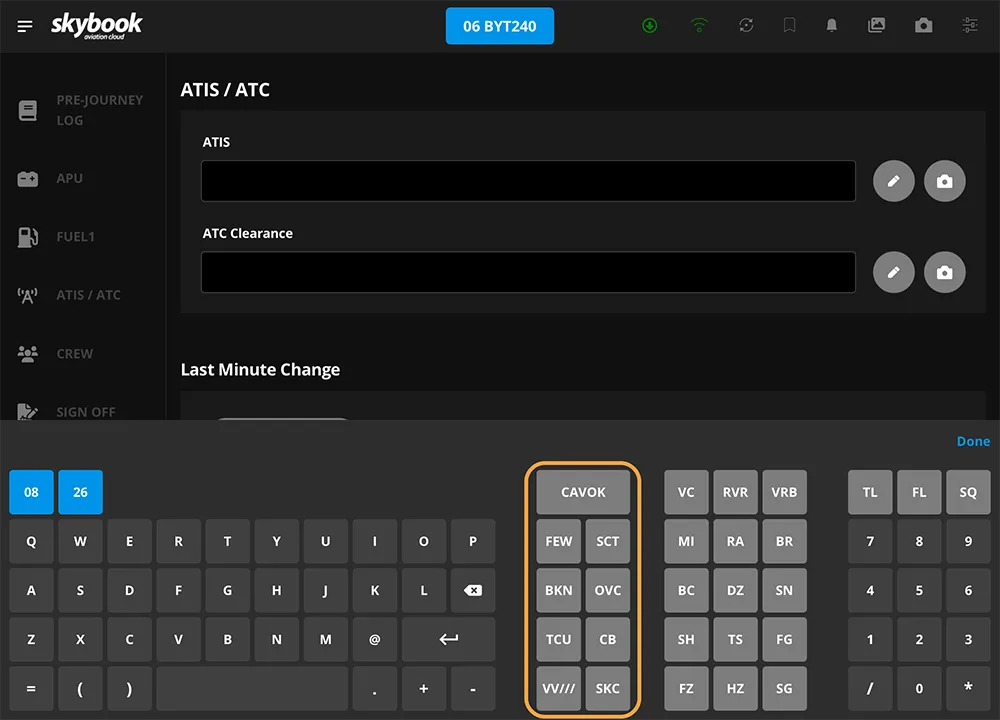
4. Weather phenomena codes.
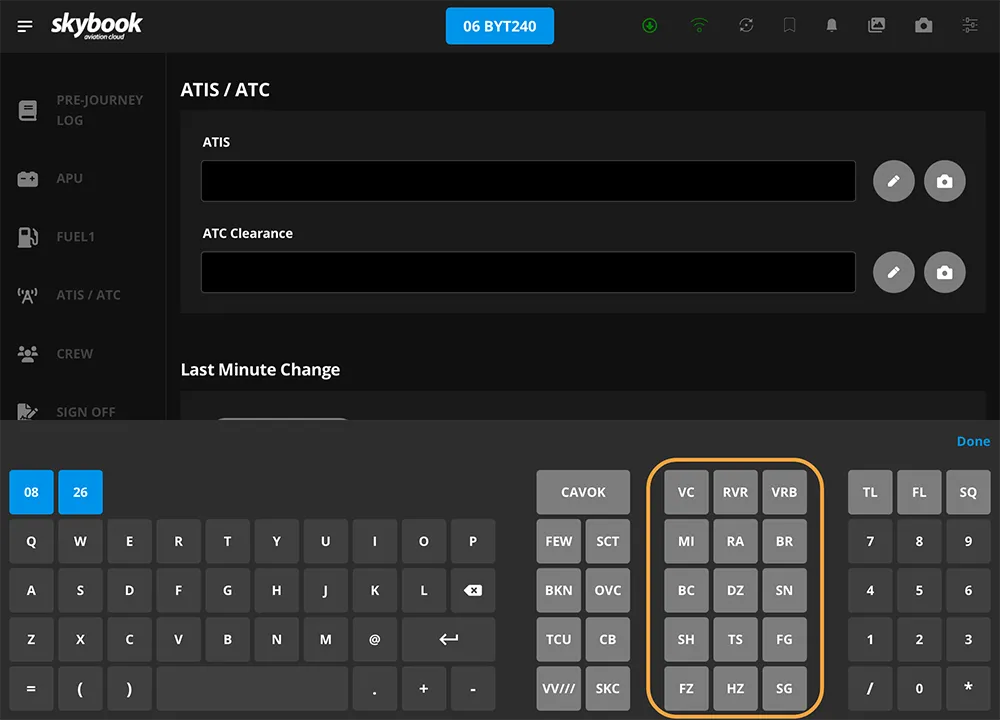
5. Flight Level and Squawk.
6. Number pad.
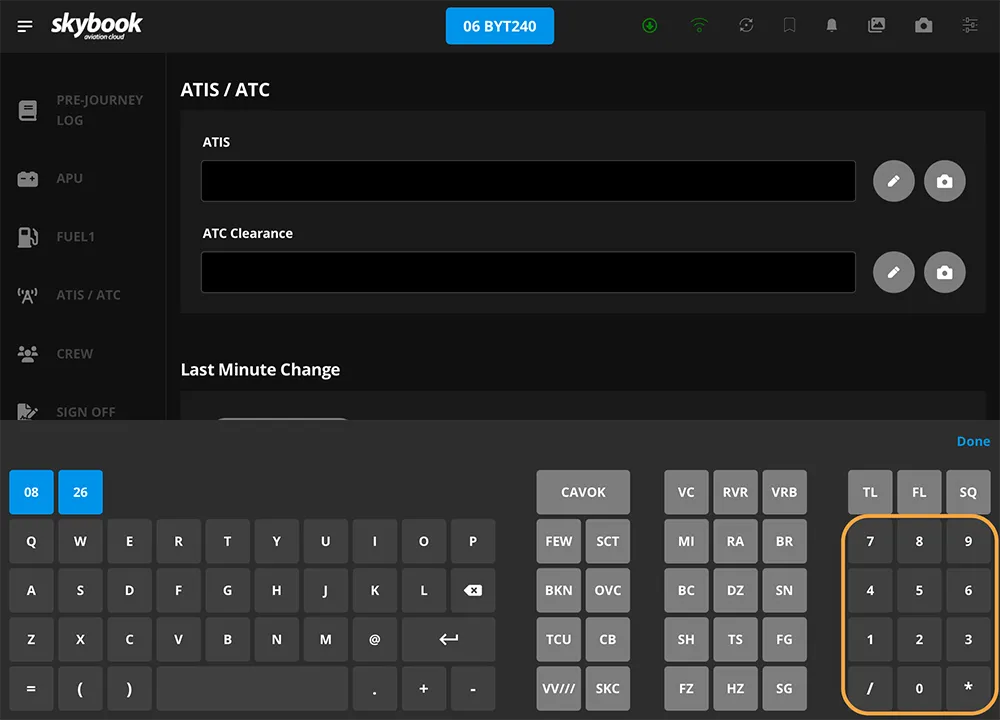
Note: All of the pre-defined keys, except for the runway designations and TCU and CB, automatically have a space inserted before them in the string.
| Abbreviation | Definition |
|---|---|
| Sky coverage | |
| CAVOK | Cloud And Visibility OK |
| FEW | Amount of cloud: Few |
| SCT | Amount of cloud: Scattered |
| BKN | Amount of cloud: Broken |
| OVC | Amount of cloud: Overcast |
| TCU | Cloud type: Towering cumulus |
| CB | Cloud type: Cumulonimbus |
| VV/// | Vertical visibility |
| SKC | Sky clear |
| Weather phenomena | |
| VC | Vicinity |
| RVR | Runway Visual Range |
| VRB | Variable wind direction |
| MI | Shallow |
| RA | Rain |
| BR | Mist |
| BC | Patches |
| DZ | Drizzle |
| SN | Snow |
| SH | Shower(s) |
| TS | Thunderstorms |
| FG | Fog |
| FZ | Freezing |
| HZ | Haze |
| SG | Snow Grains |
| Flight Level and Squawk | |
| TL | Transition Level |
| FL | Flight Level |
| SQ | Squawk |
The Camera functionality of the EFB has been enhanced.
Once you have taken a photo, you can choose to Retake it, if you are not happy with it, or to use the photo.
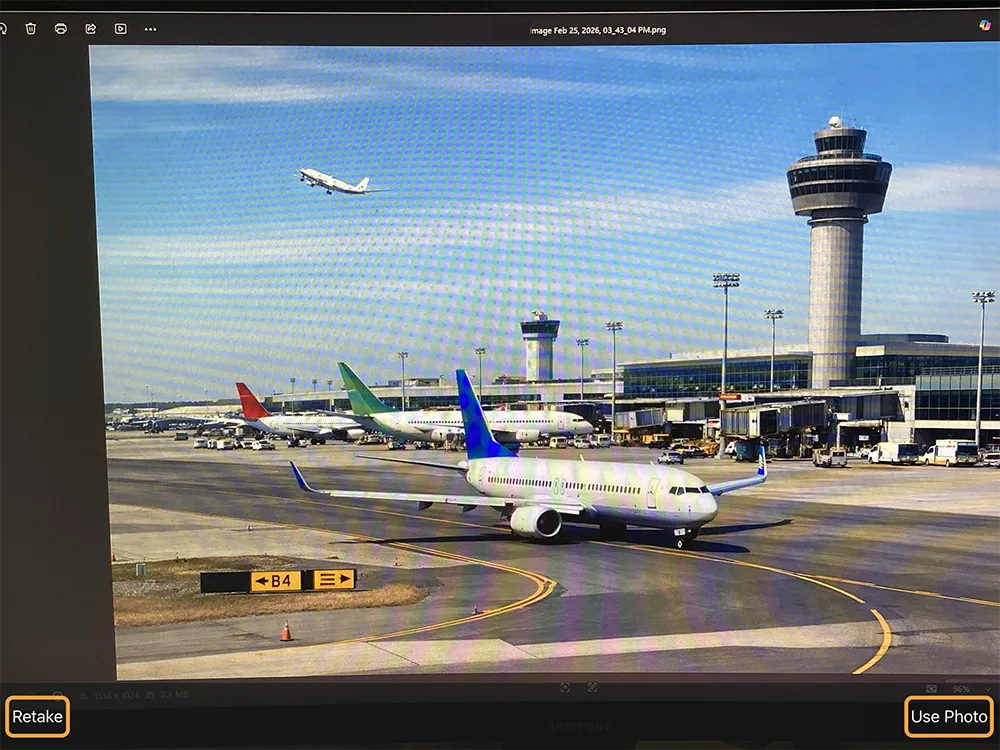
Once you have made your choice, you will be returned to the camera function. This enables you to take multiple photos if required. If you choose Use Photo, the image will be stored in the Gallery, with the filename format "date_time_sectorId_voyageId".
To access your photos, tap the Gallery button at the top of the screen.
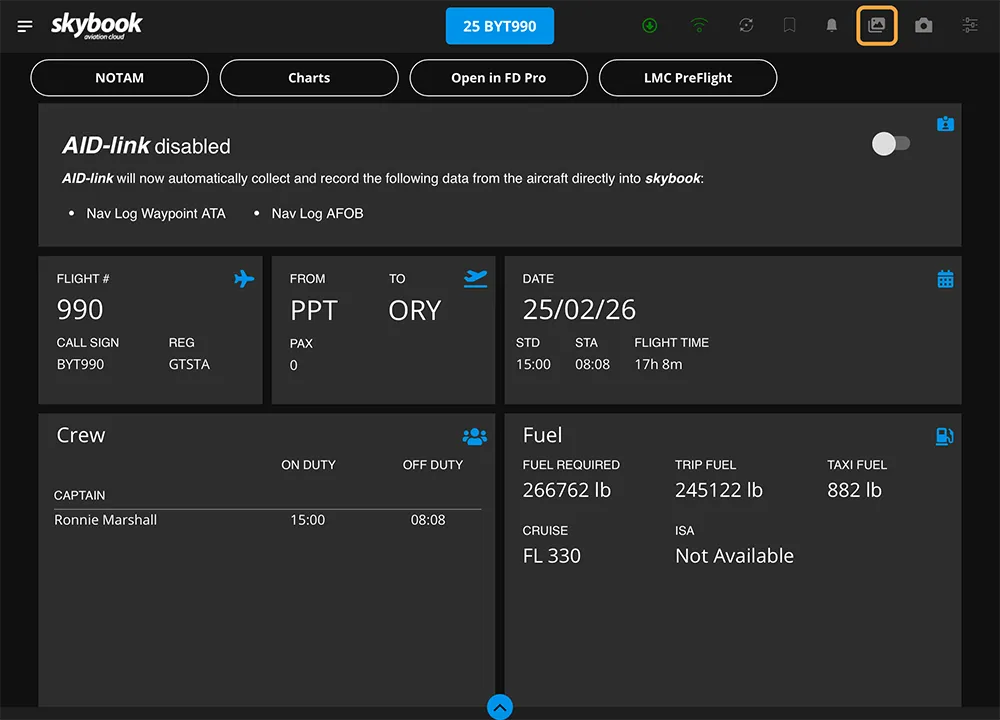
You will see a list of the photos that have been taken during this voyage, including those taken within modules.
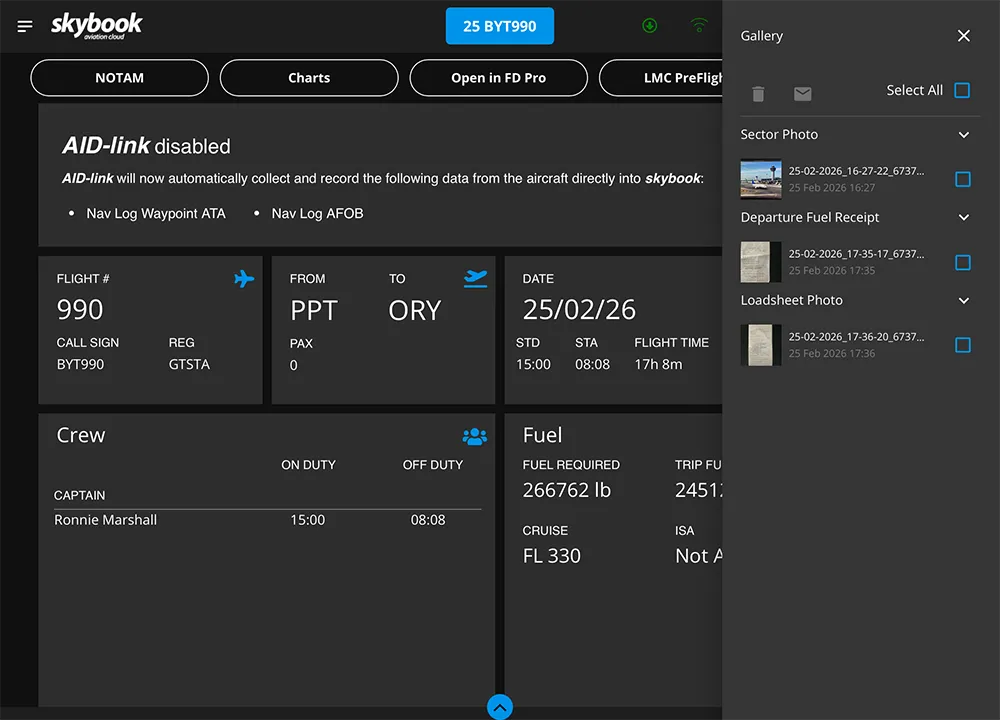
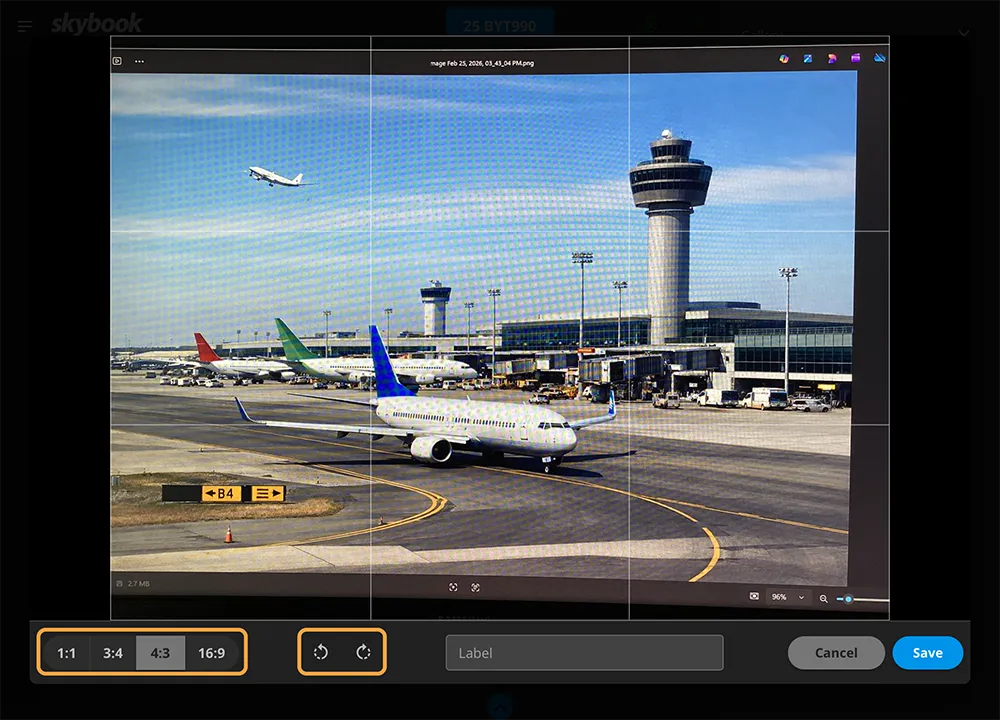
Tap on an image thumbnail to open the photo. To change the aspect ratio or rotate the image, tap on the relevant button at the bottom of the screen. Allowing you to crop a photo, pinch and zoom or reposition the image in the grid.
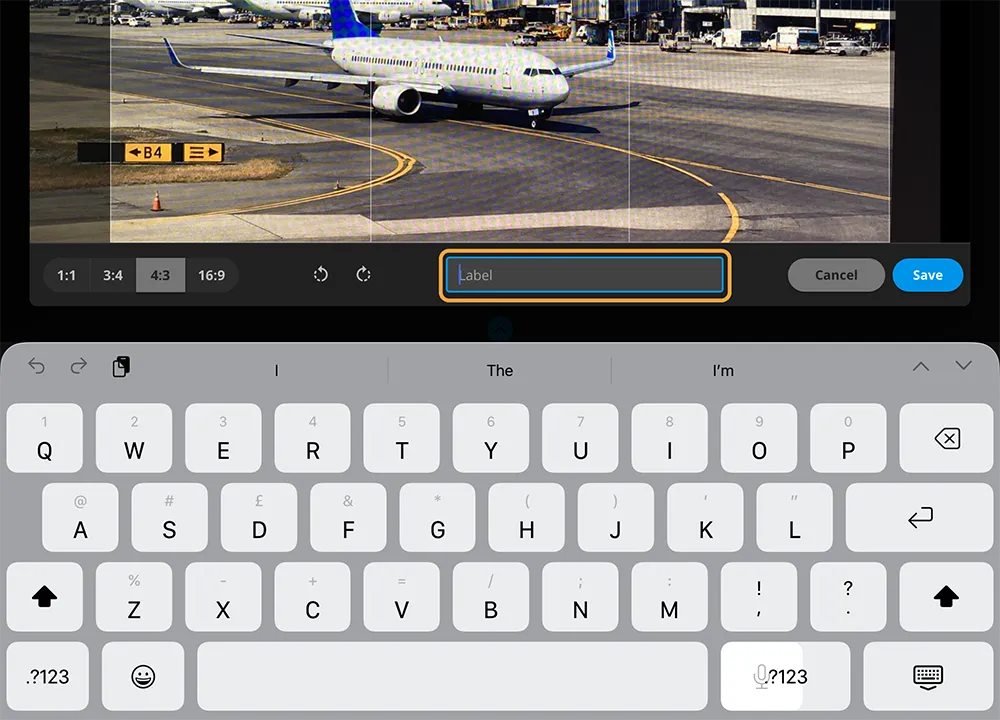
To add a label, tap in the Label field, the device keyboard appears and you can type in your preferred label text to rename the photo. Labels are restricted to a maximum of 56 characters.
Once you have made all of your changes, tap the blue Save button to return to the Gallery.
Using the tick boxes on the right-hand side, you can select individual photos to delete or email. Alternatively, you can tap Select All at the top of the screen to select all of the photos to process at once.
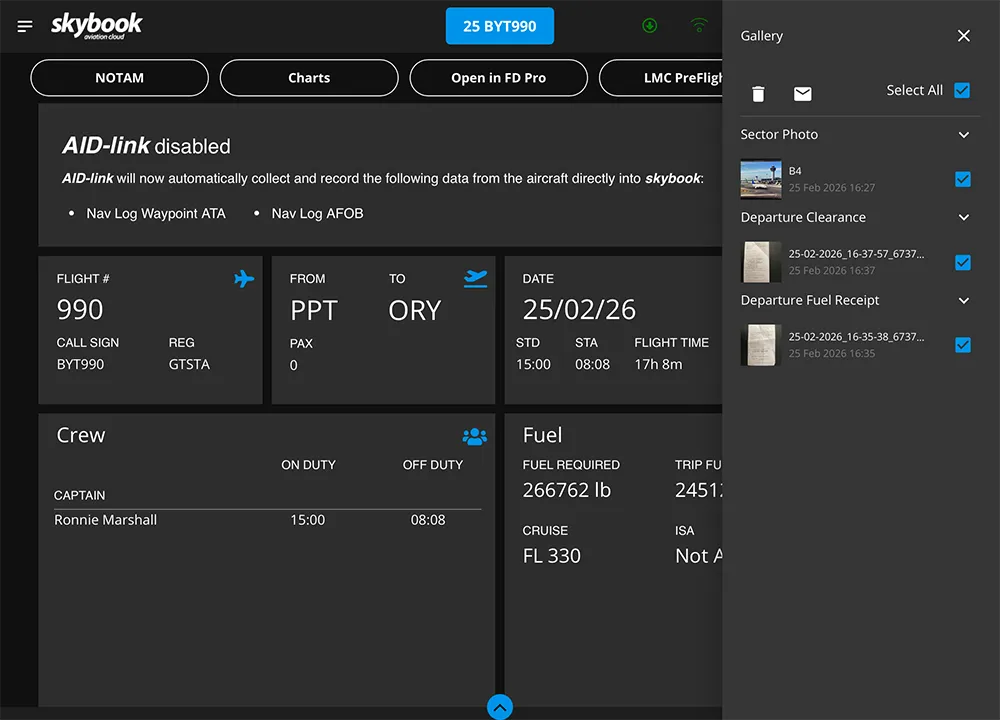 All photos and their associated labels will be transmitted to the Ground Portal when the voyage is signed off.
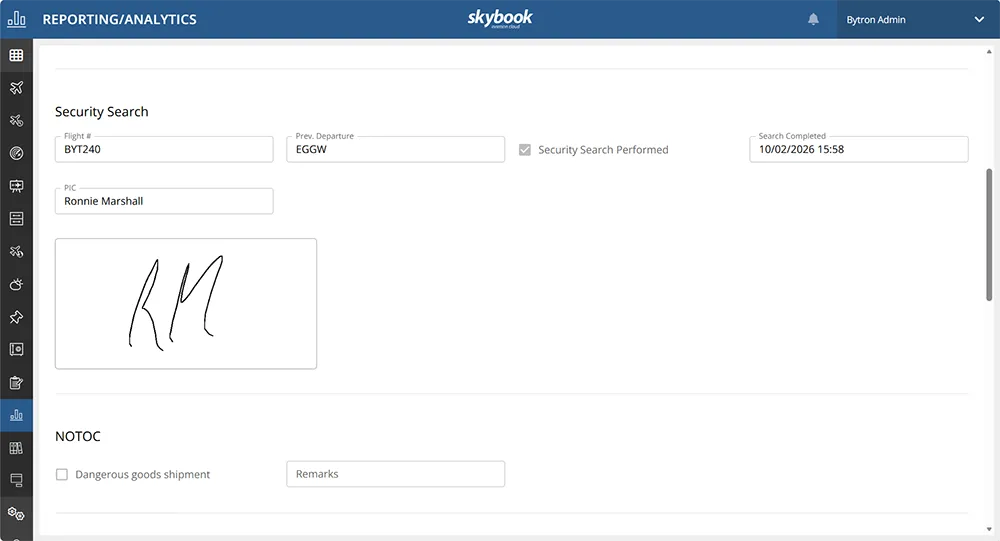
Security Search
New Security Search fields have been added to the Pre-Journey Log module. They are pre-populated with the Flight number and the departure airfield of the aircraft's previous flight.
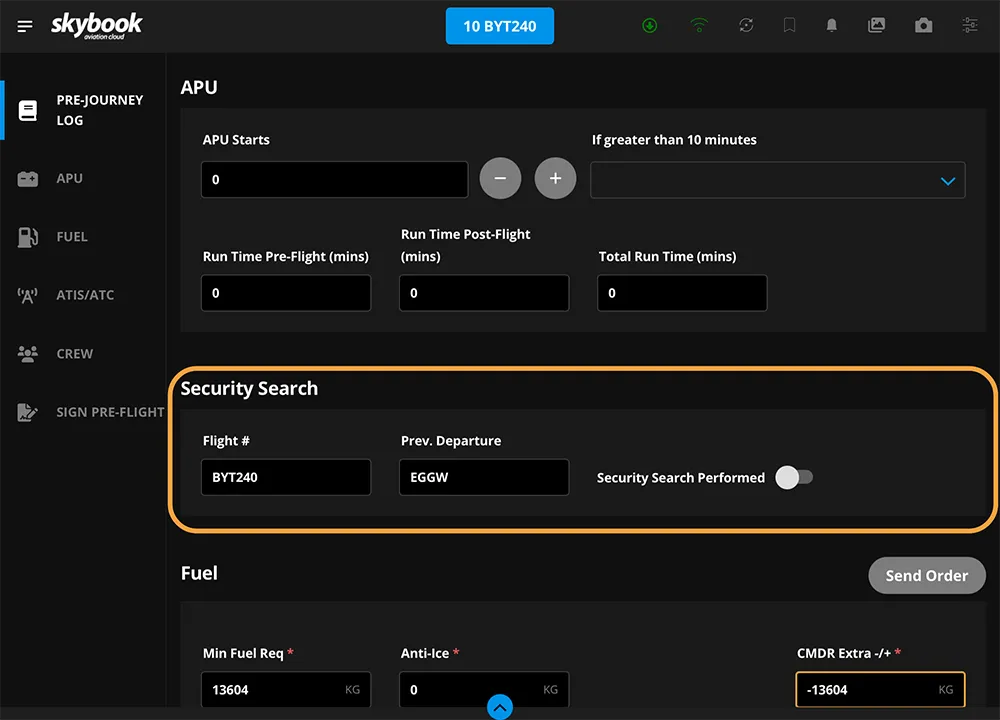
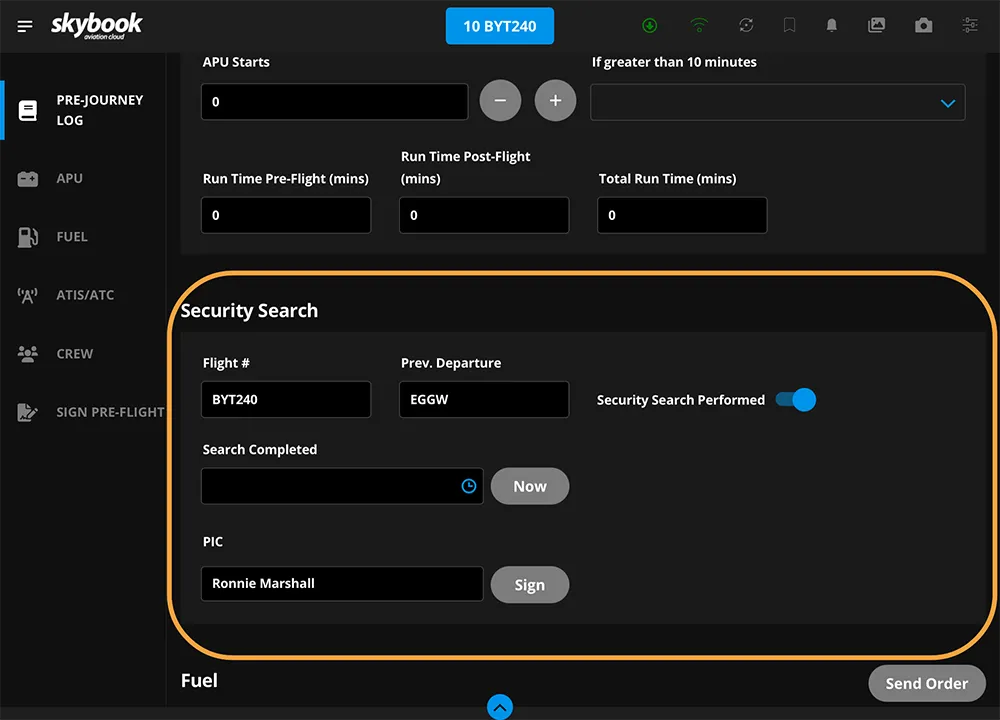
Tap the Security Search Performed toggle to add further information. If a Commander has been designated for the sector, their name will be automatically displayed in the PIC (Pilot in command) field.
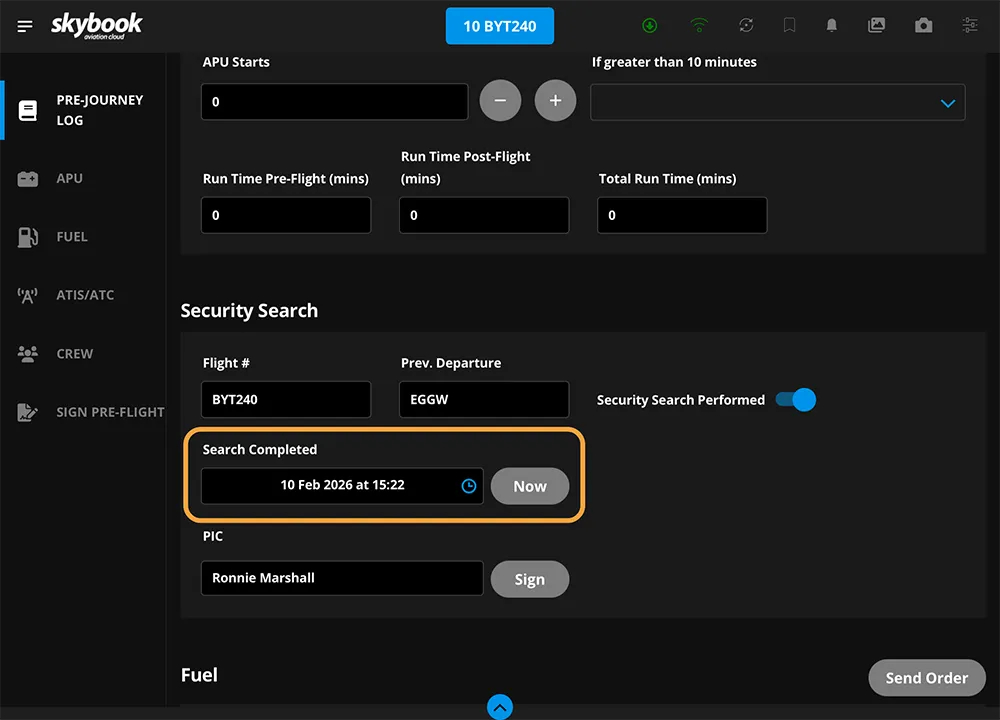
Tap the Search Completed field to enter the time that the search was completed, or tap the Now button to auto-fill the field with the current date and time.
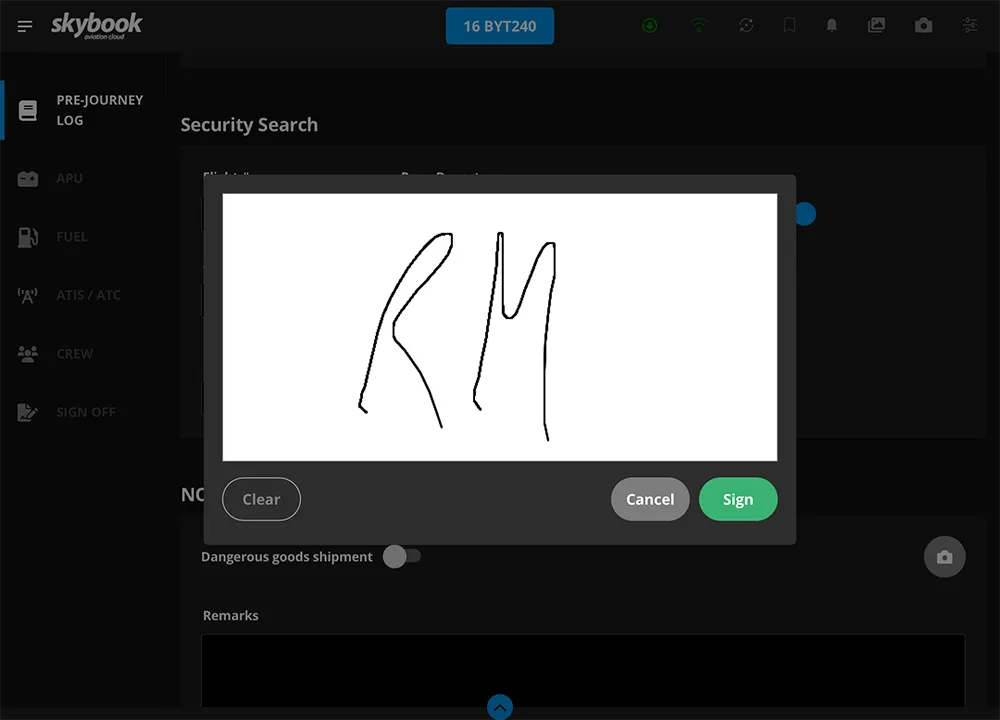
Tap the Sign button to add your signature using the scribblepad. Then tap the green Sign button to save your signature.
To send the Security Search information back to the skybook Ground Portal, tap the Synchronise button at the top of the screen and then tap the Share with Ground Portal button. Otherwise, the information will be transmitted back to the Ground Portal once the Pre-Flight module has been signed off.
NOTOC
New NOTOC fields have been added to the Pre-Journey Log module.
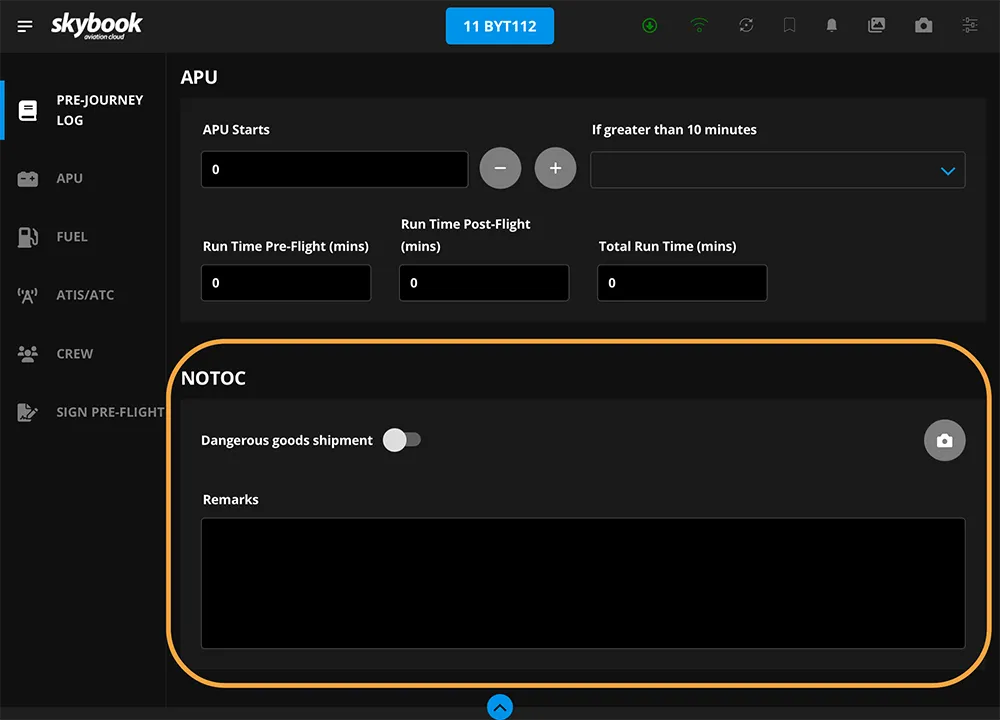
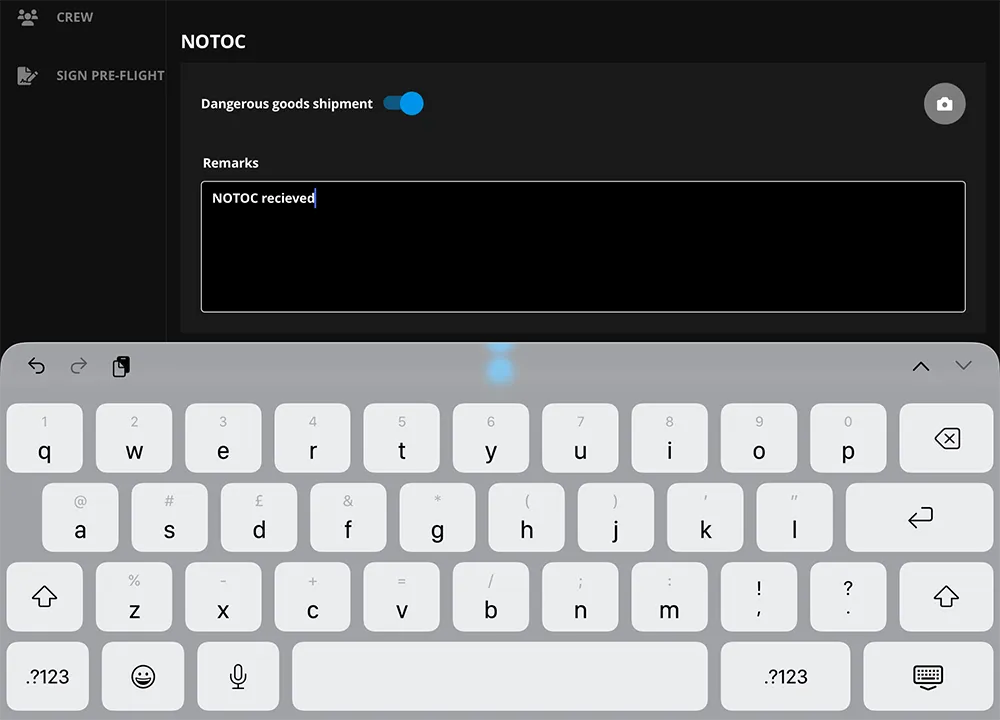
Tap the Dangerous Goods Shipment toggle. Tap in the Remarks field and the device keyboard appears so you can enter any further information.
You can also tap the Camera button to take a photo of the NOTOC, which will be displayed as a thumbnail underneath the Remarks field as well as in the Gallery.
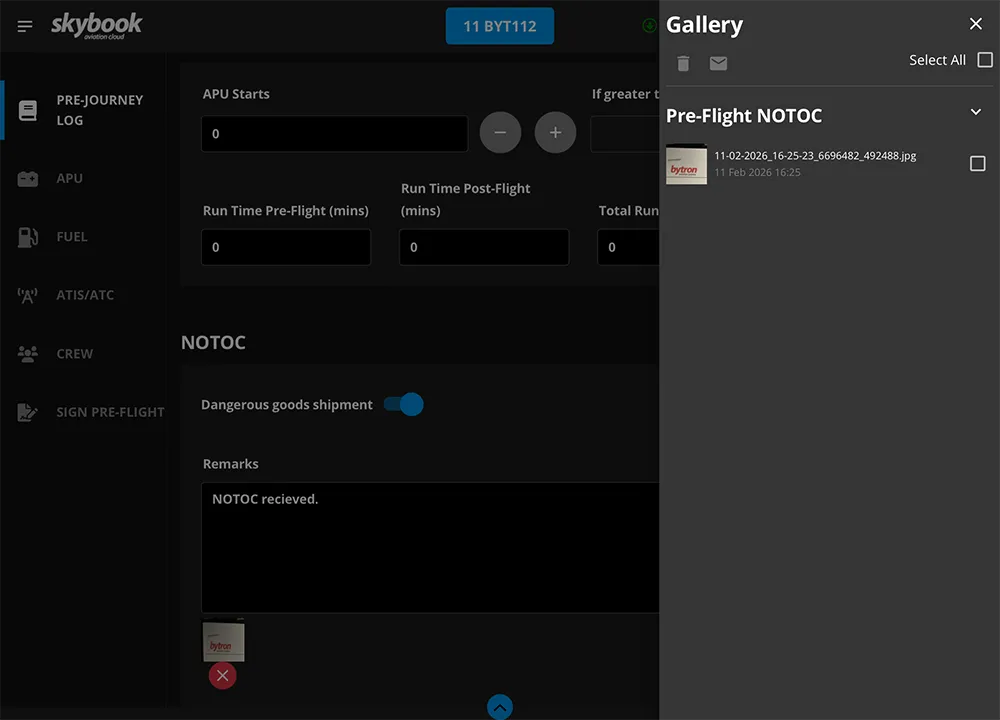
The NOTOC information will be transmitted back to the skybook Ground Portal once the Pre-Flight module has been signed off.
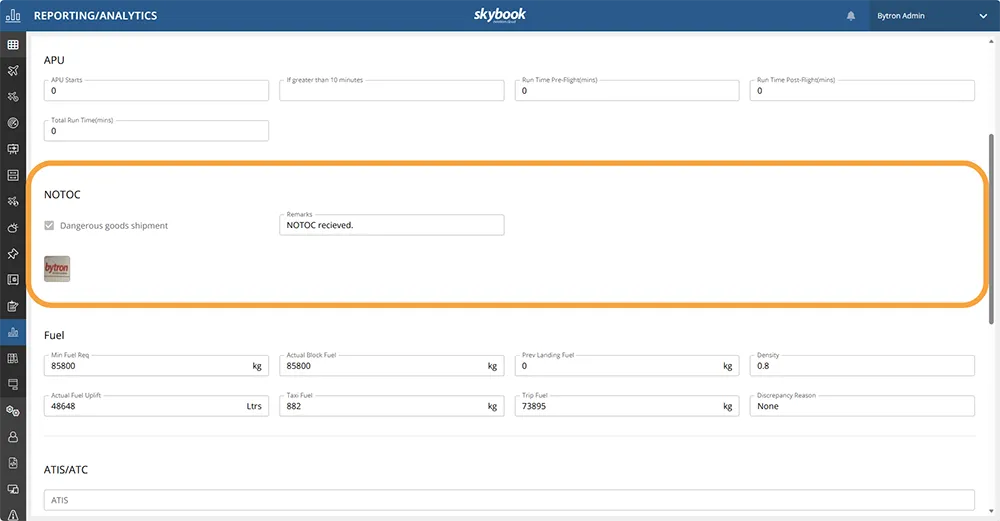
Note: In order to use the Security Search or NOTOC fields, they must be enabled in the Pre-Flight section of the skybook App screen on the Default Settings tab in the Ground Portal.
It is now possible to favourite modules from the left-hand menu in the EFB to be added as quicklinks on the Summary page.
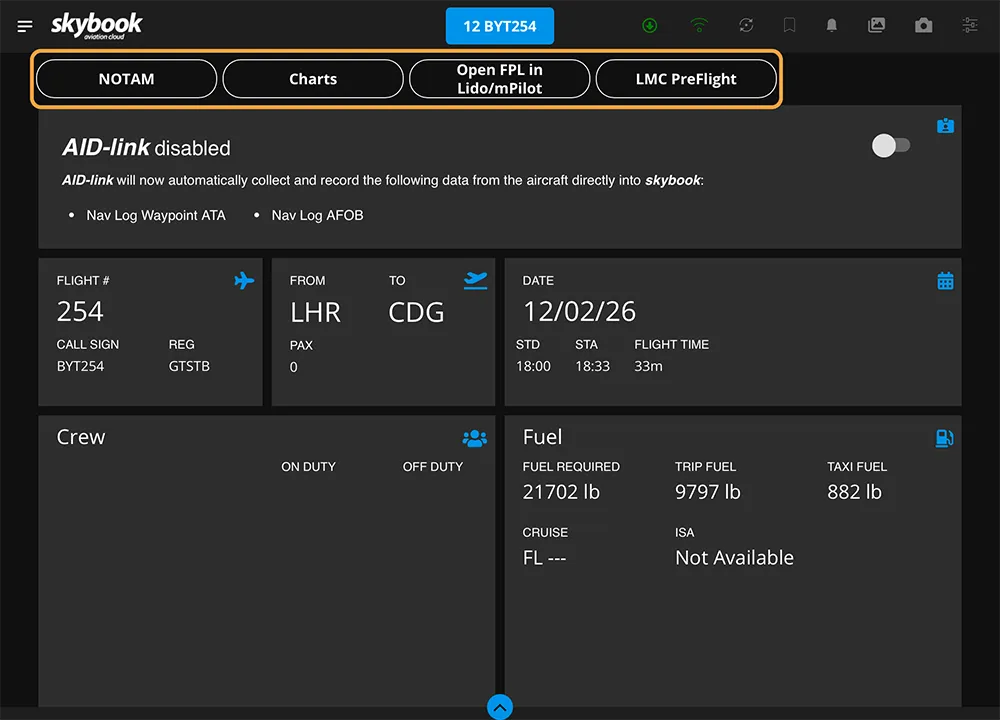
Once you have accepted a sector, swipe right on a module that you would like to favourite. A star will appear to the left of the module name.
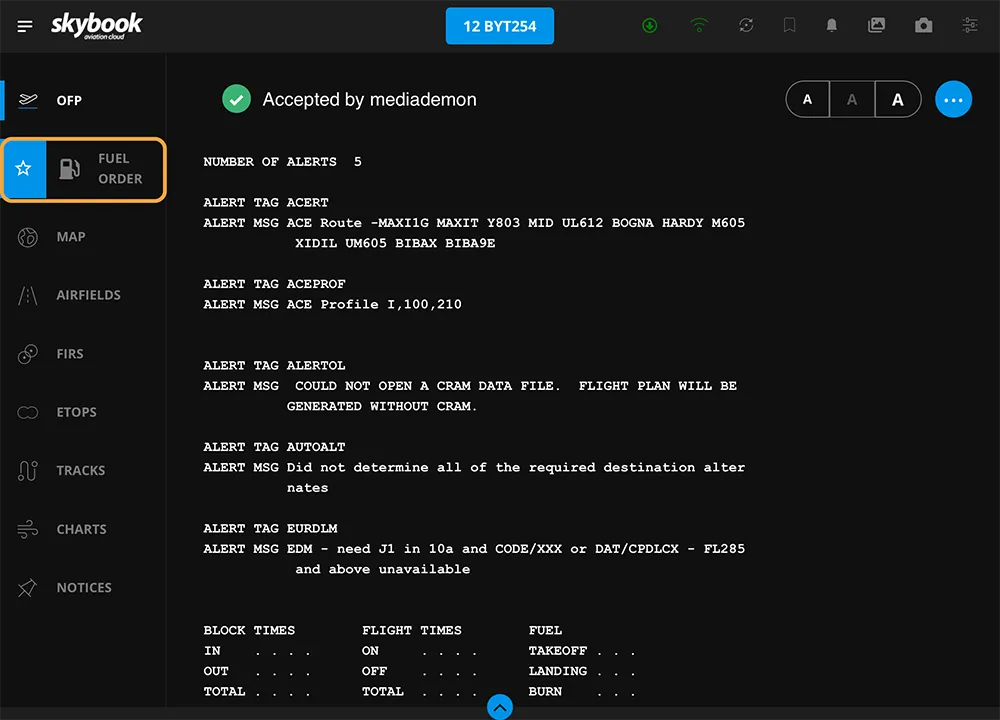
Tap the star to add the favourite as a quicklink on the Summary page. The star will be filled in and a dot will appear next to the module name.
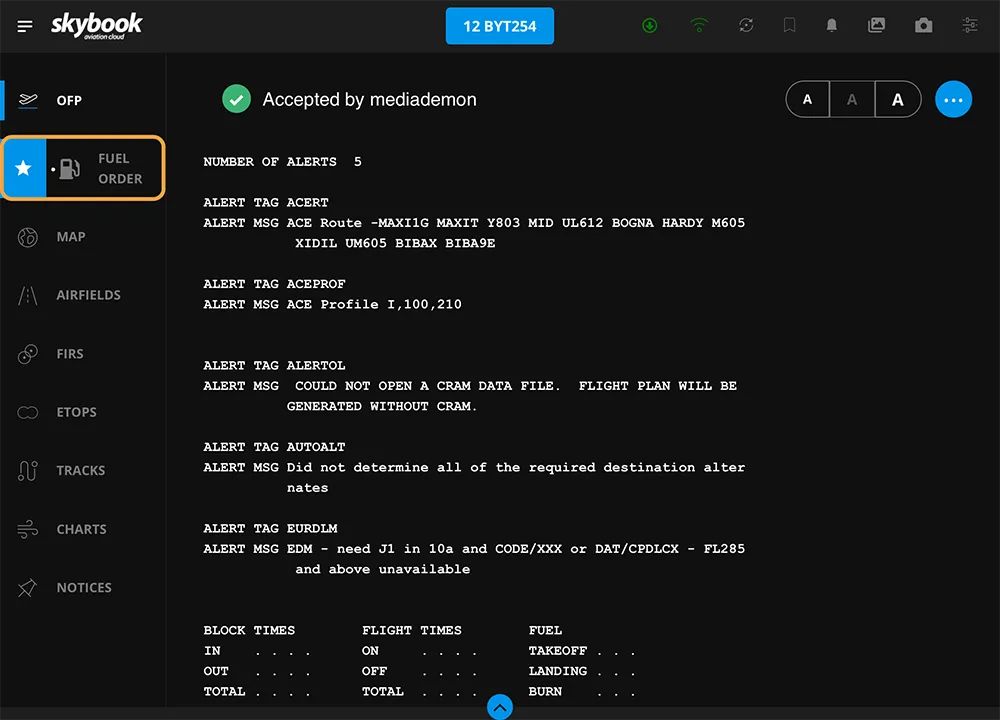
A new quicklink will display on the Summary page.
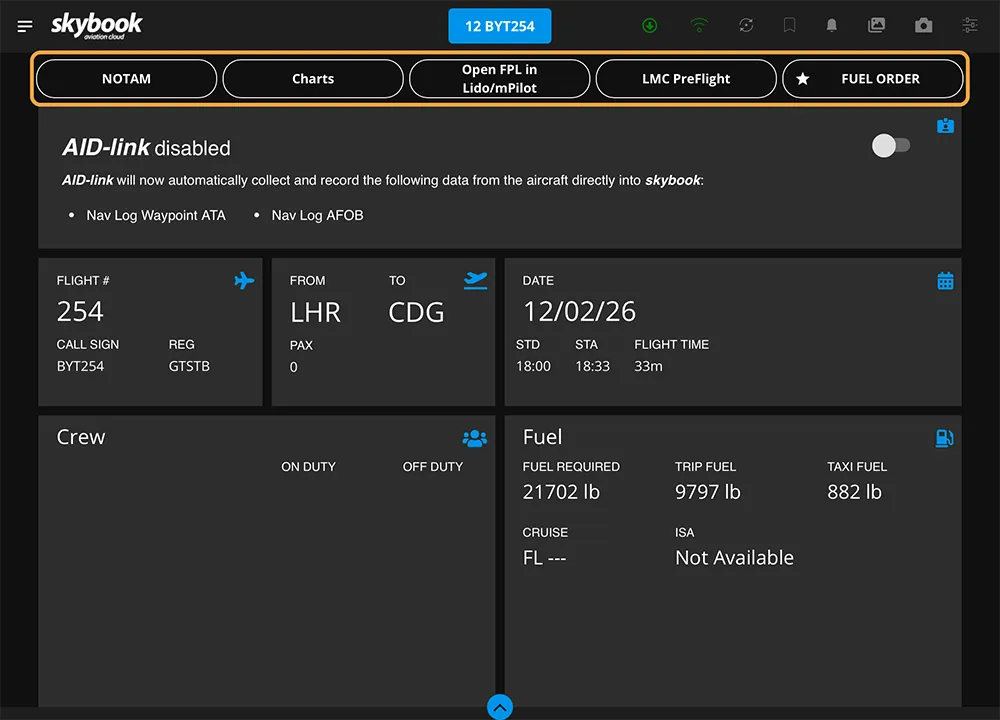
You can have a maximum of 10 quicklinks on the Summary page, including the default links.
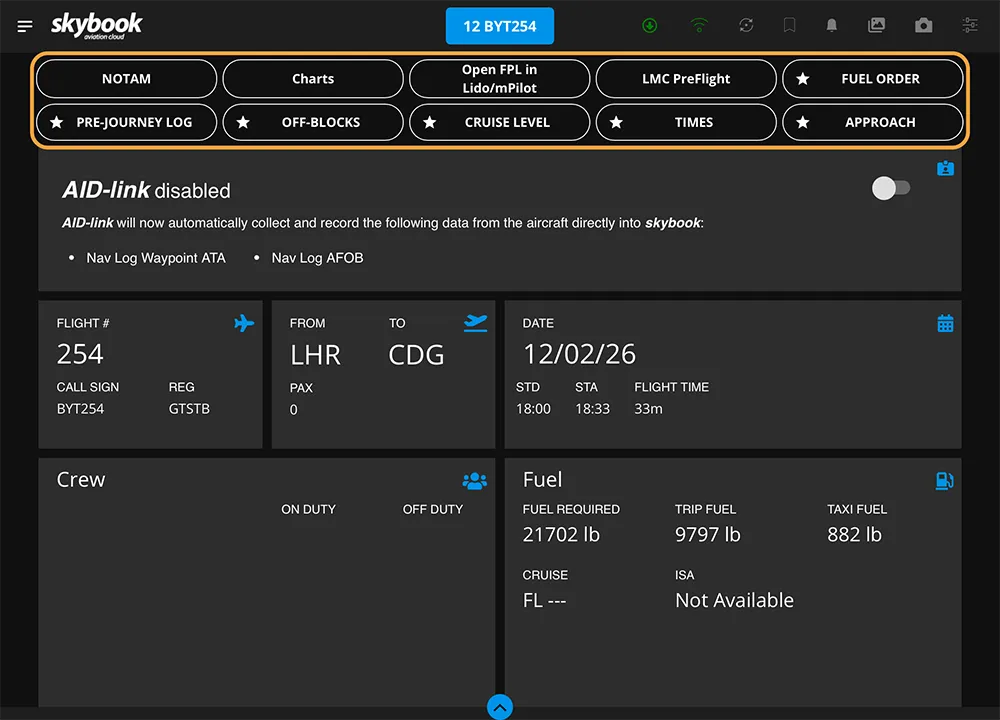
To remove a favourite quicklink, tap and hold a quicklink until the favourites start to jiggle and turn red. Tap the X on the link you want to remove. When finished, tap anywhere on the screen to return to normal view.
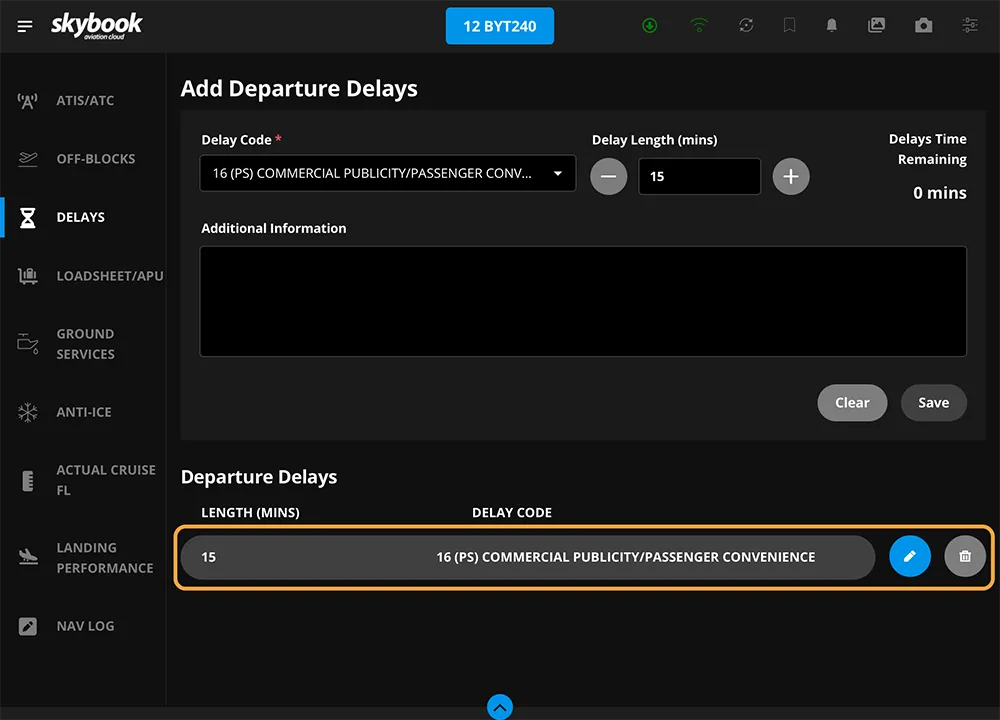
Search functionality has been added to the Delay Code field. When you tap in the Delay Code field, the device keyboard appears. As you type, a dropdown menu appears listing delay codes containing the text that you have input.
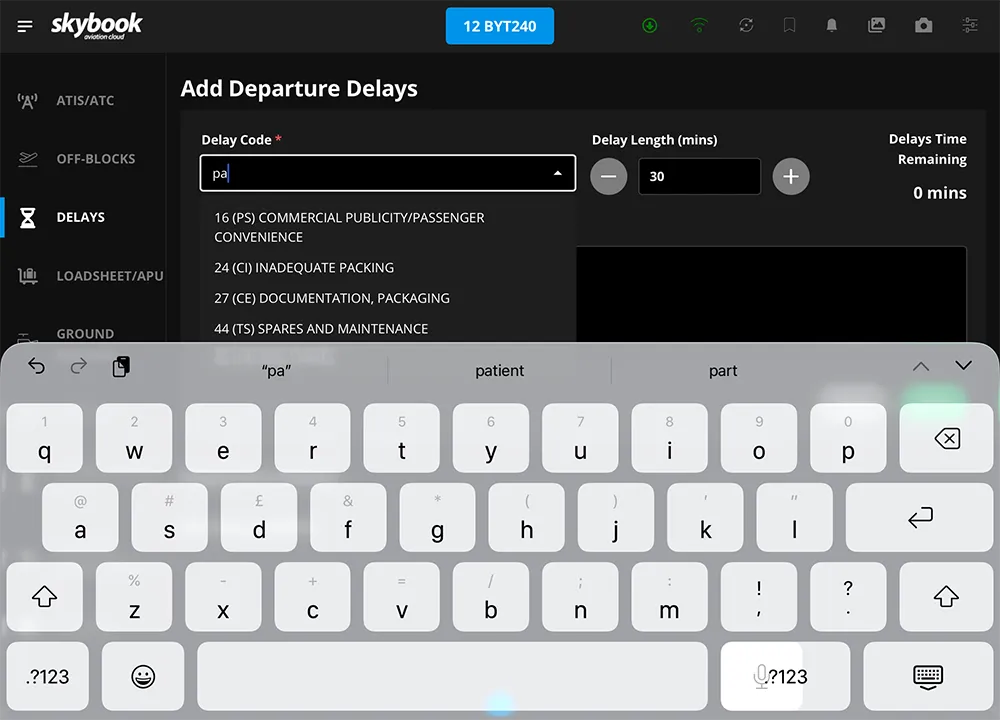
You can then select the correct code from the dropdown, and complete the rest of the delay report and Save as normal.
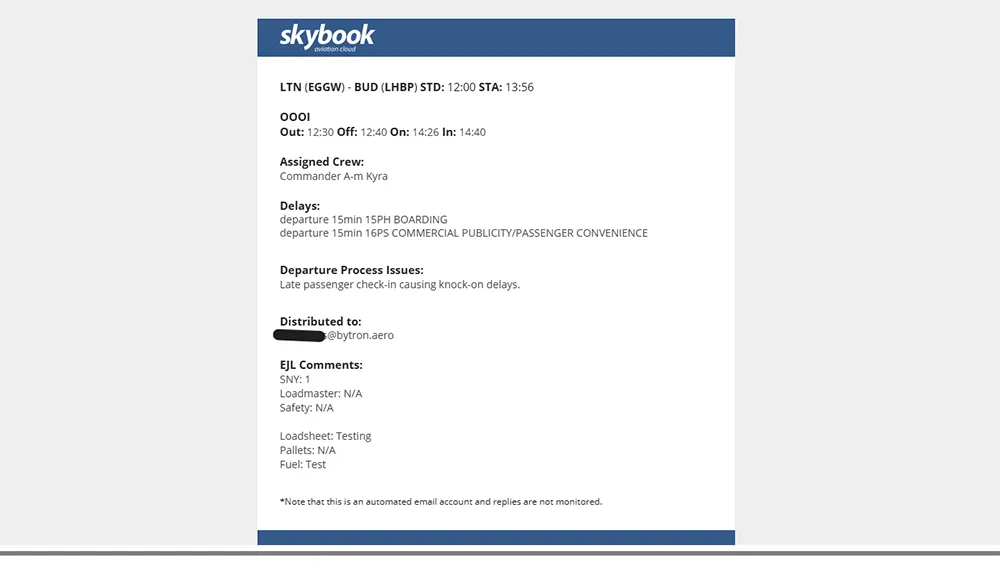
Changes have been made to the information included in the EJL (Electronic Journey Log) email that is sent once a flight has been signed off.
New triggers for sending EJL emails have also been added. EJL emails are sent, even if the EJL Comments fields are empty, if:
A condensed version of the FMS Route Check is now available. The data is provided from the ATC flight plan, field 15, and all of the waypoints can be checked with one tickbox instead of one tickbox per waypoint.
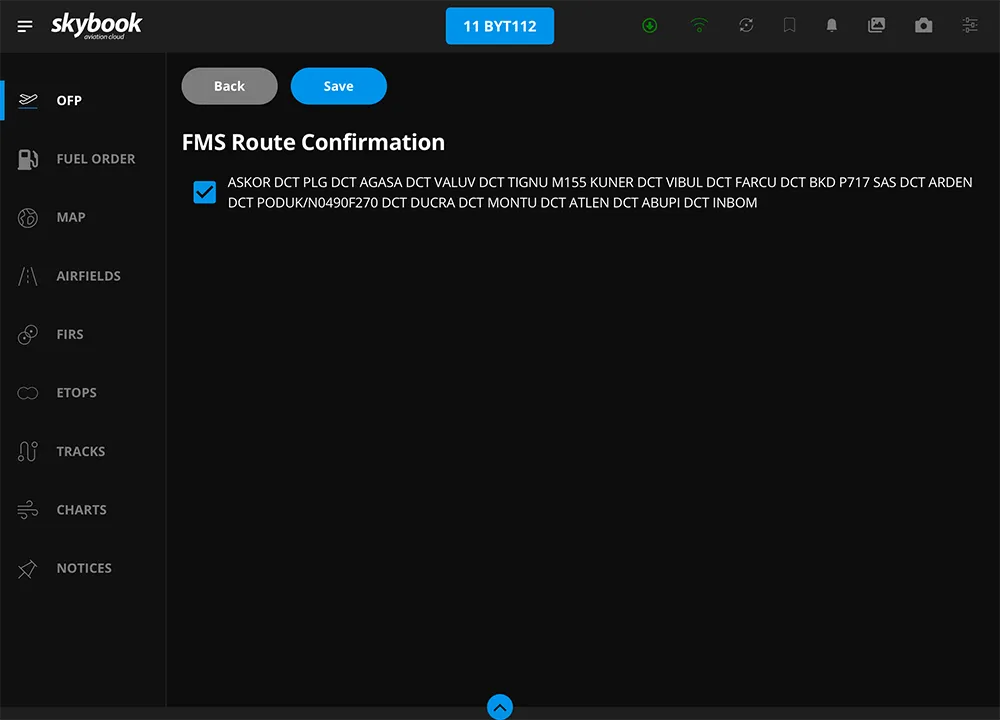
Note: In order to use the condensed FMS Route Check, it must be enabled in the skybook App screen on the Default Settings tab. The setting is called "App to copy field15 rather than the fpl".
Following work in a previous release, voyage data for sectors signed off while a device is offline is automatically sent to the skybook Ground Portal when an internet connection is restored. An amber status icon on the Locally Saved screen indicates data is waiting to be transmitted.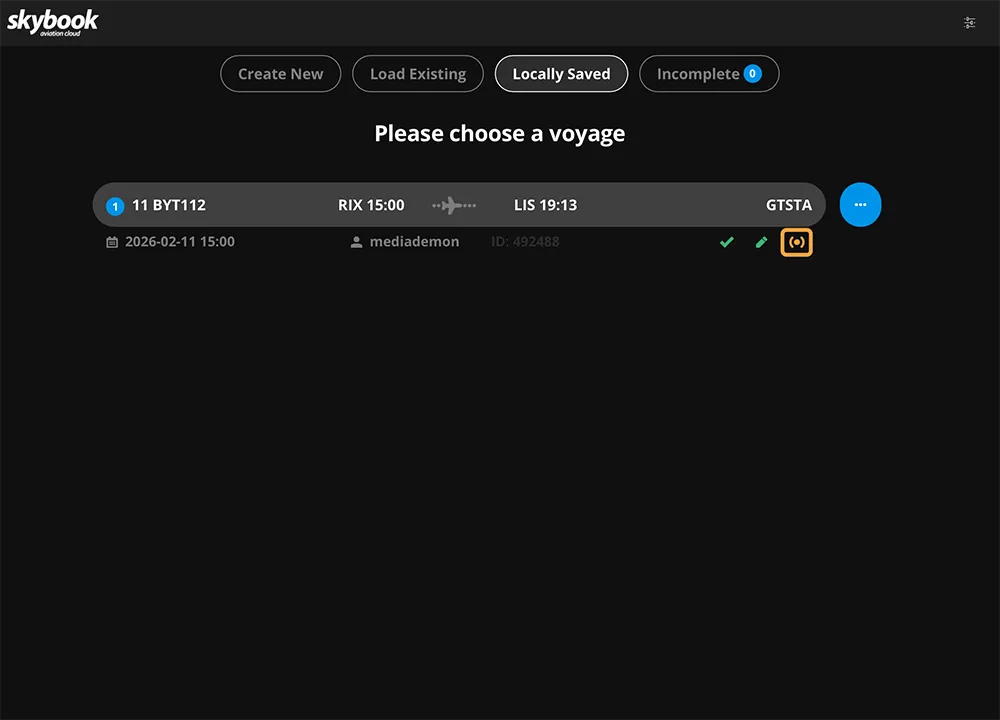 The status icon on the Locally Saved screen displays green once data is successfully transmitted.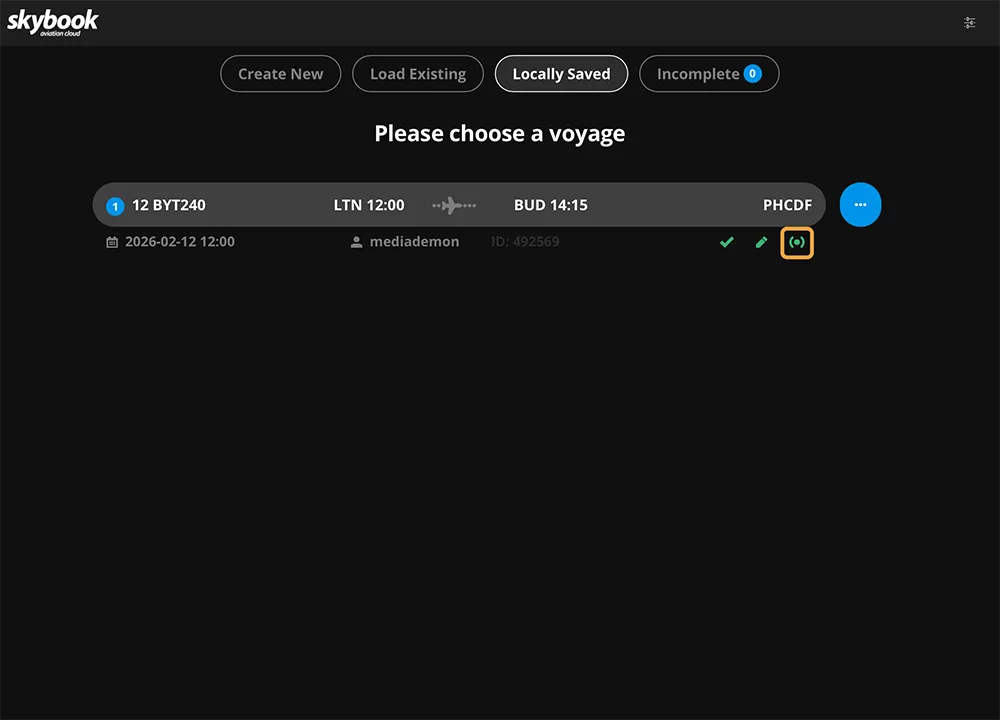
Additional roles used in Leon have been mapped to skybook roles and functions. The following Leon roles are now automatically processed by skybook:
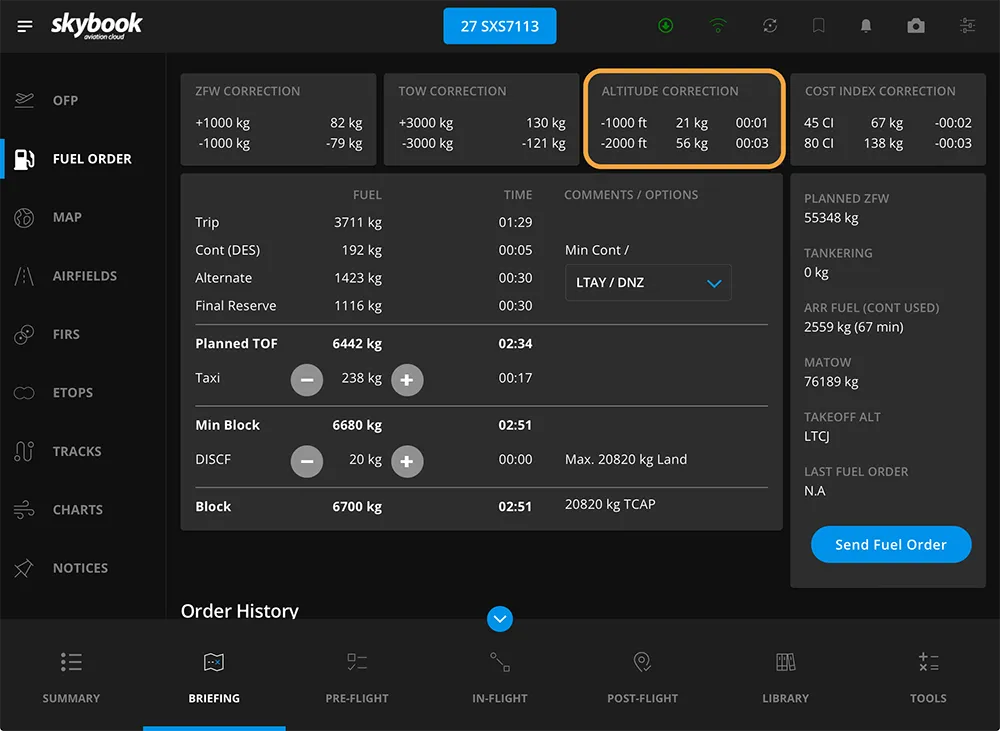
Adjustments have been made to the values displayed in the Altitude Correction tile of the adjustment-based fuel order form. Flight levels are adjusted in values of +/-2000 ft per level.
Take a look at what’s included in the previous skybook release notes (1.48.0)