Meet James Murray our Product Analyst

Updated 12th March 2026
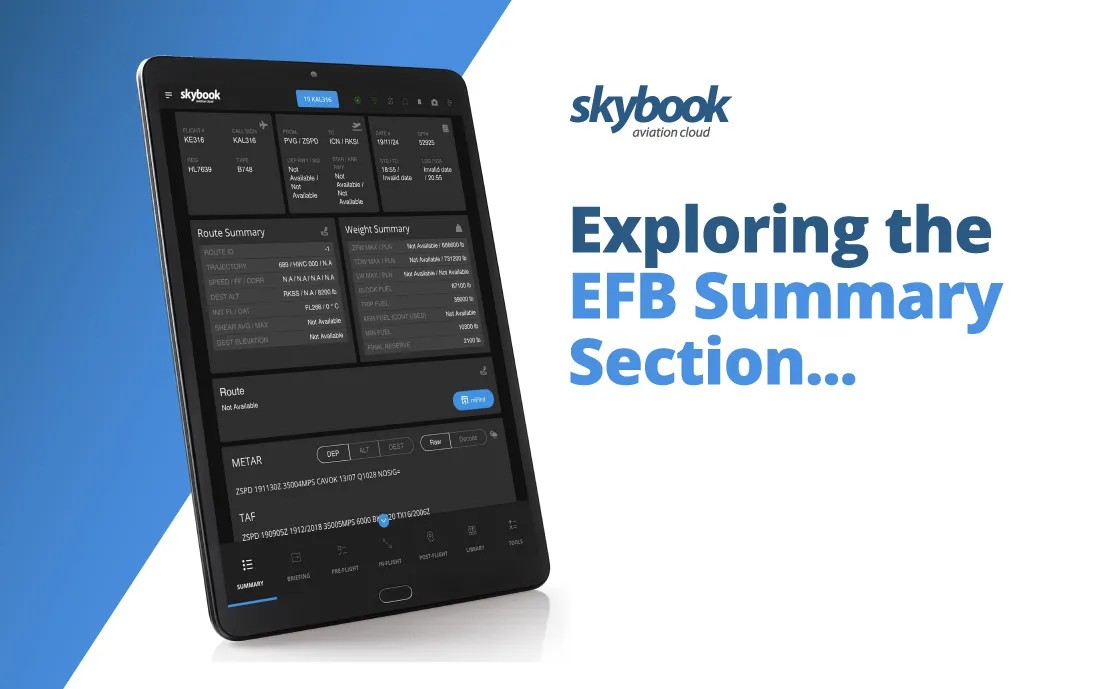
At the heart of the skybook Electronic Flight Bag (EFB) is the Summary Section...
A powerful tool designed to provide pilots with a streamlined overview of critical flight information while offering seamless access to other key areas of the application.
In this article, I explore the summary section options, highlighting how it streamlines flight crew workflows with seamless quick links and integrations to other areas of the app.
The skybook EFB includes a summary section to fit your airline’s needs, providing pilots a clear and concise snapshot of the flight ahead.
The first section includes quick links, to efficiently direct pilots to up to 10 areas of the app. The default links include:
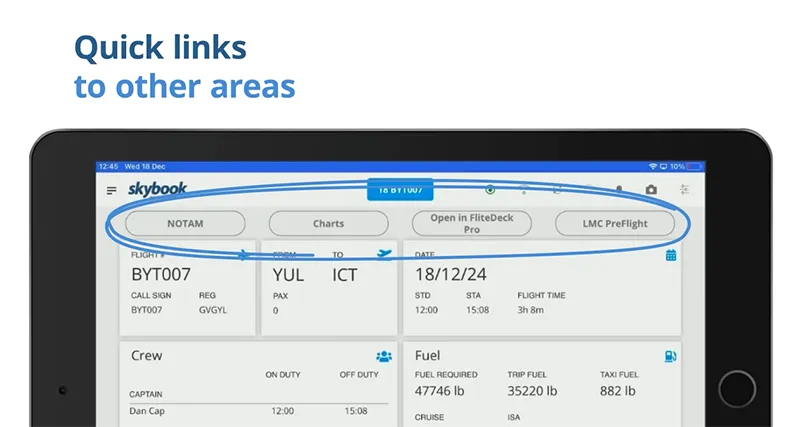
Users can add up to 10 of their favourite sections of the app as quick links for instant access and workflow optimisation. Simply swipe right on a module such as Airfields, fuel, OFP or times and tap the star icon to mark it as a favourite.

Quick links enable flight crews to prepare efficiently, enhancing situational awareness while reducing time spent searching for key information.
A series of informative blocks are presented below the links.
The first row of blocks shows information for the aircraft, flight, STD / STA times and CTOT (Calculated Take-Off Time).
The second row displays Crew and Fuel details. The Crew block includes information for roles, names, on-duty, and off-duty times. The Fuel block includes key data like fuel required, trip fuel, taxi fuel, cruise fuel, and ISA.
Both blocks are also quick links, allowing users to navigate directly to each section for inputting or editing crew and fuel.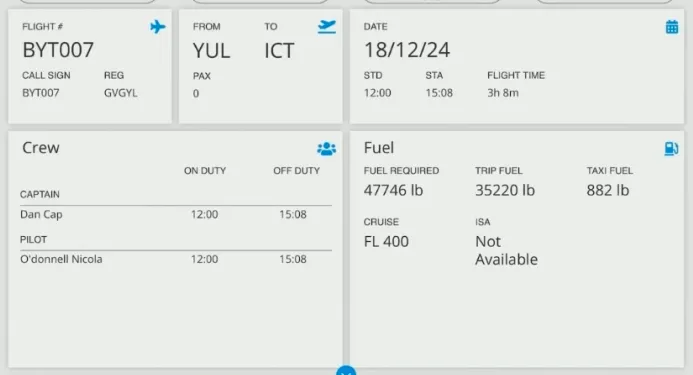
METAR & TAF is then shown for the departure and destination, both in raw and decoded format to suit the pilot’s preference.
The minimum equipment list (MEL) maintenance status is also integrated onto the summary screen, from your MEL provider such as AMOS.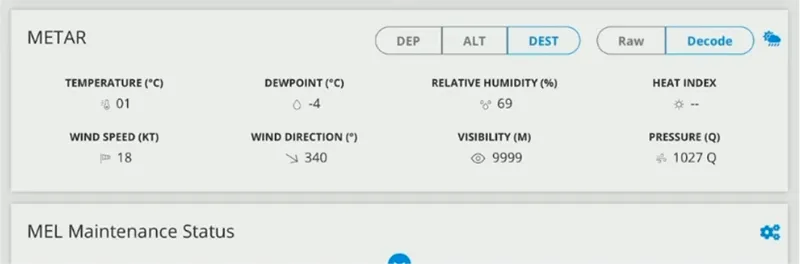
Finally, the flight history displays a list of the previous flights for that sector including times and fuel information.
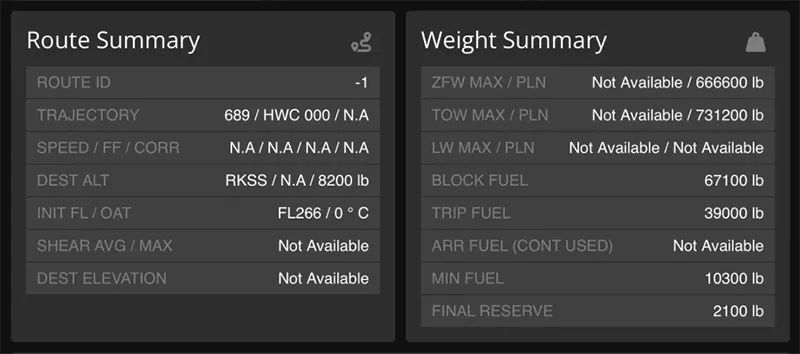
An alternative summary screen shows most of the data from the first version, but removes the quick links along the top, in favour of detailed Route Summary and Weight Summary blocks.
Route Summary
Route ID, Trajectory, Speed / FF / Corr, Destination altitude, Init FL / OAT, Shear Avg / Max, Destination elevation
Weight Summary
ZFW Max /Pln, TOW Max / Pln, LW Max / Pln, Block fuel, Trip fuel, Arrival fuel (cont used), Min fuel, Final reserve
A quick link feature to the relevant charting app is still available as a button in the Route section, saving manual input from the pilot.
Whether it's providing a quick insight into the flight ahead or enabling instant access to more detailed data, the skybook Summary Section exemplifies our commitment to improving operational efficiency and enhancing the pilot experience.
Airlines can customise their summary section requirements based on their operational requirements for integrations, specific data and quick link requests.
Would you like to experience our EFB system firsthand?
Schedule a short demonstration to see it in action!